[Set Route] Choose an origin and destination
Automatically translated from Korean.
What you can do
Search for ports and airports by name or code to choose your origin and destination.
Add frequently used ports and airports to your favorites so you can select them directly without searching.
The mode of transport is determined by your selections. Choosing an airport sets the mode to air, while choosing a port sets it to sea.
How to use it
After choosing the transport type, enter at least two characters in the “Origin” field. You can search by Korean name (인천), English name (incheon), or code (ICN·KRINC).
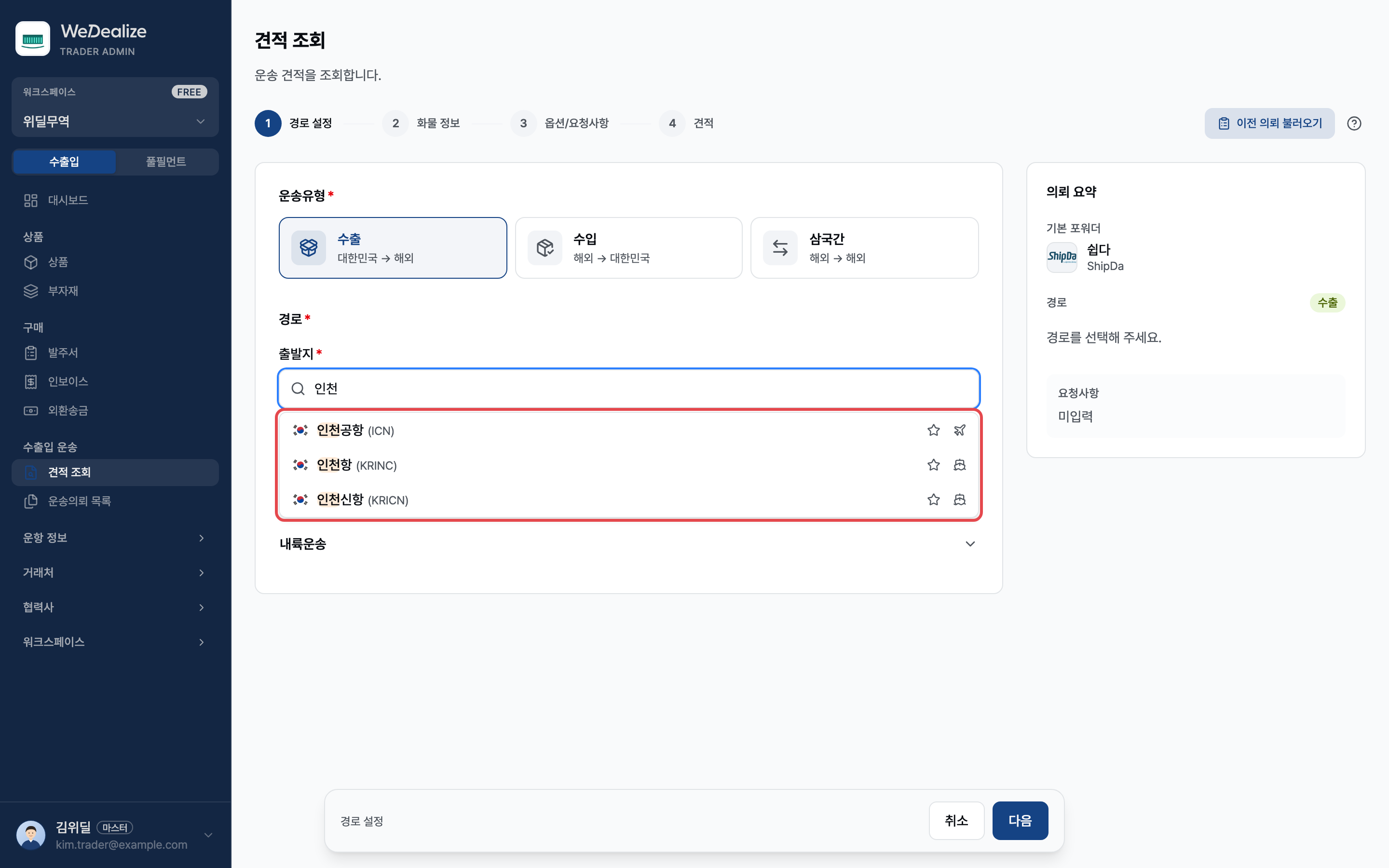
Click one of the results. You can identify the type by the icon at the far right of the row. An airplane indicates an airport, and a ship indicates a port.
Select the destination using the same method in the “Destination” field. The destination field opens after you select an origin.
To clear your selection, click the × on the right side of the field.
Frequently asked questions
Do I have to search for frequently used ports every time?
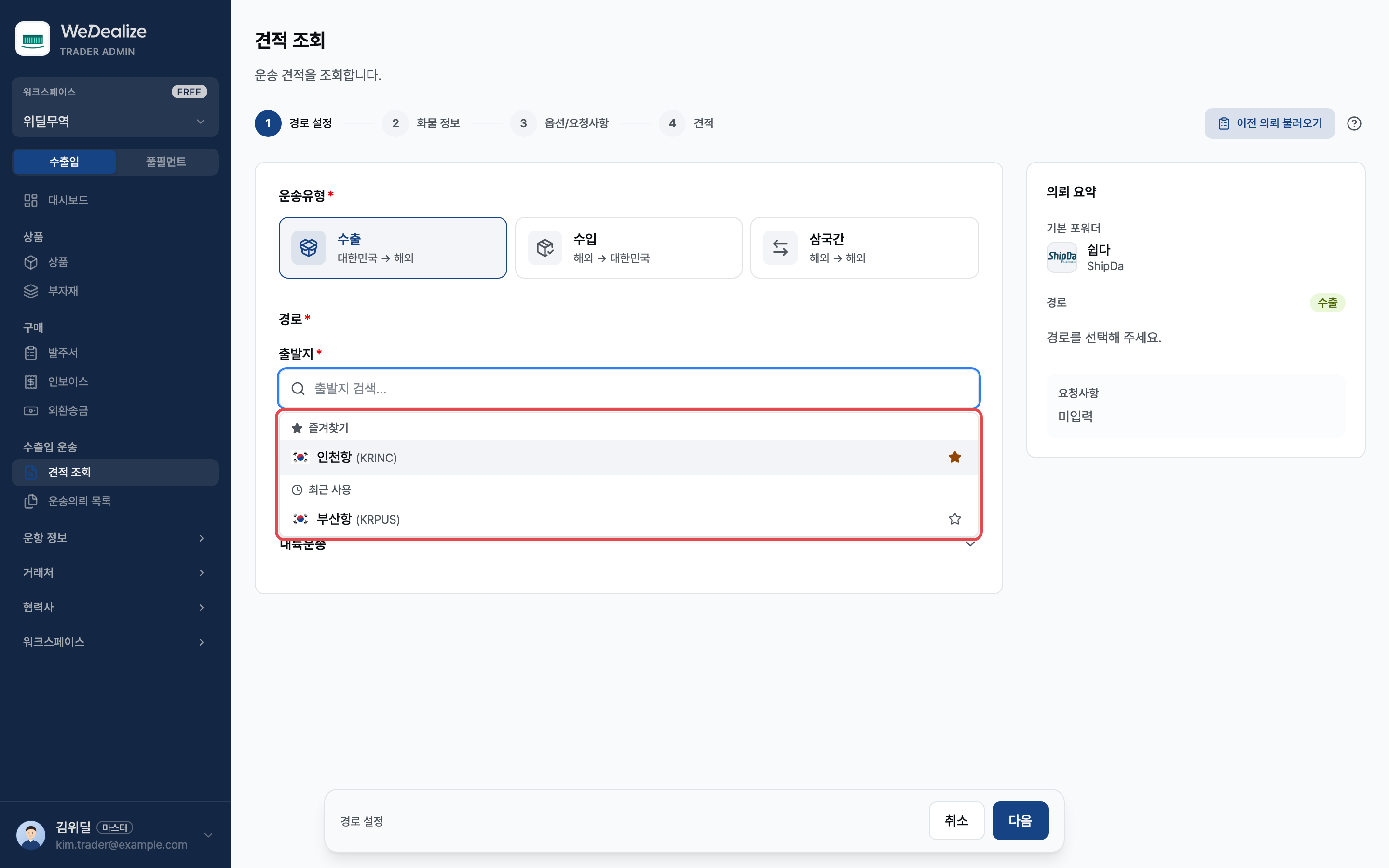
Click the ☆ on the right side of a search result to add it to your favorites. From then on, simply click an empty field to see the “Favorites” and “Recently used” lists first. The favorites and recently used lists are shared by members of the same workspace team.
The origin is an airport, but no ports appear as destinations.
Routes from an airport to a port, or from a port to an airport, cannot be selected. If the origin is an airport, ports will not appear in the destination search results, and if the origin is a port, airports will not appear.
Can I choose a destination in the same country as the origin?
No. The destination search only shows countries different from the origin country. For example, in triangular trade, if the origin is Shanghai Port, Ningbo and Qingdao will not appear in the destination search results.
Is the destination cleared if I change the origin?
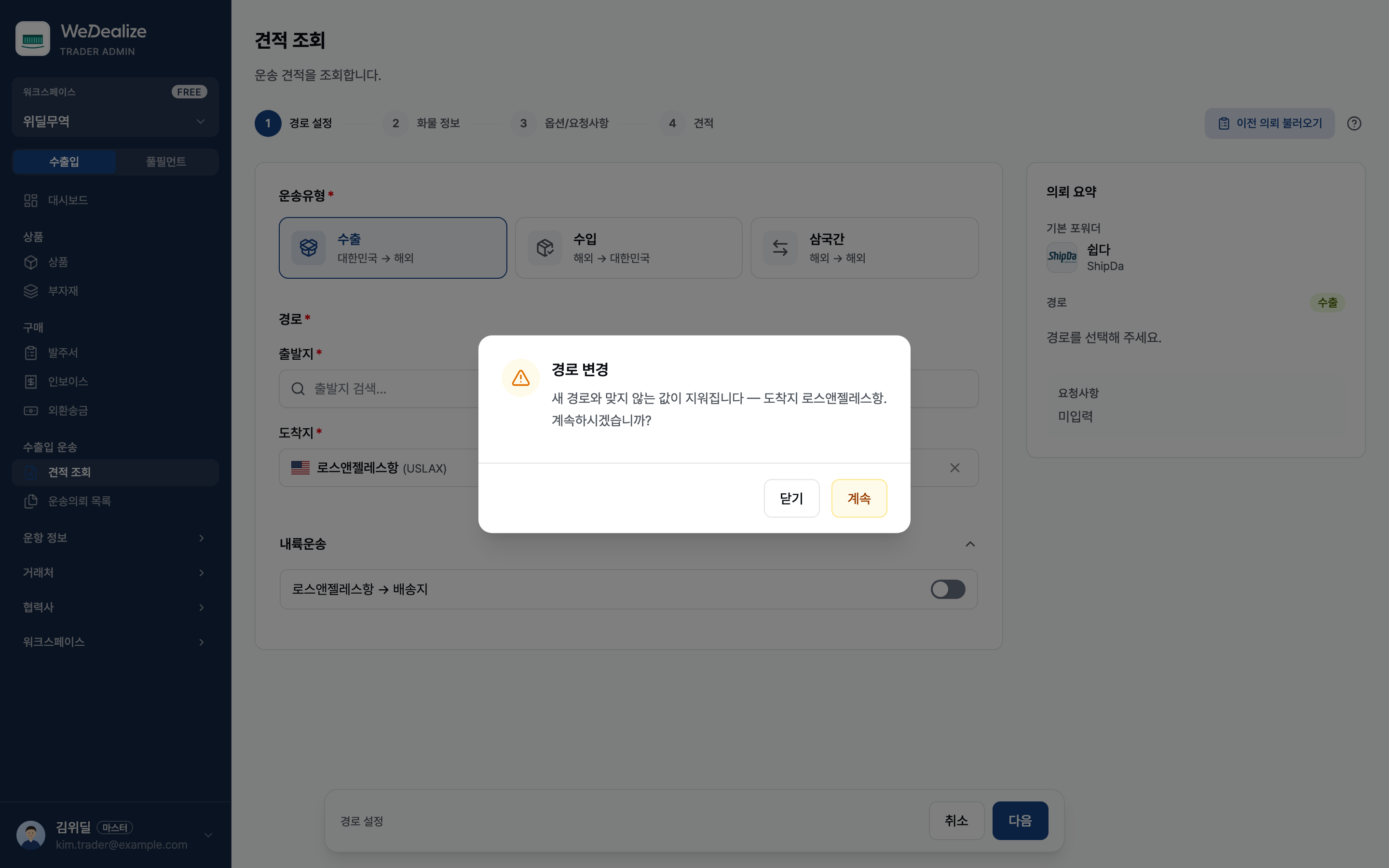
A destination that matches the new origin remains unchanged. If any selected value becomes incompatible, the “Change Route” window opens first and tells you what will be cleared. For example, if you change the origin from Busan Port to Incheon Airport on the Busan Port → Port of Los Angeles route, it tells you that “Destination: Port of Los Angeles” will be cleared. Click “Continue” to apply the change, or “Close” to leave it as is.
Nothing appears when I enter only one character.
Search starts with two characters. If you enter only one character, such as “부,” “No search results.” appears.