[Route Setup] Entering Multiple Pickup and Destination Locations
Automatically translated from Korean.
What you can do
You can enter multiple addresses when collecting shipments from several factories and sending them together, or when dividing an arriving shipment among multiple destinations.
You can enter up to 20 pickup locations and 20 destinations (delivery locations).
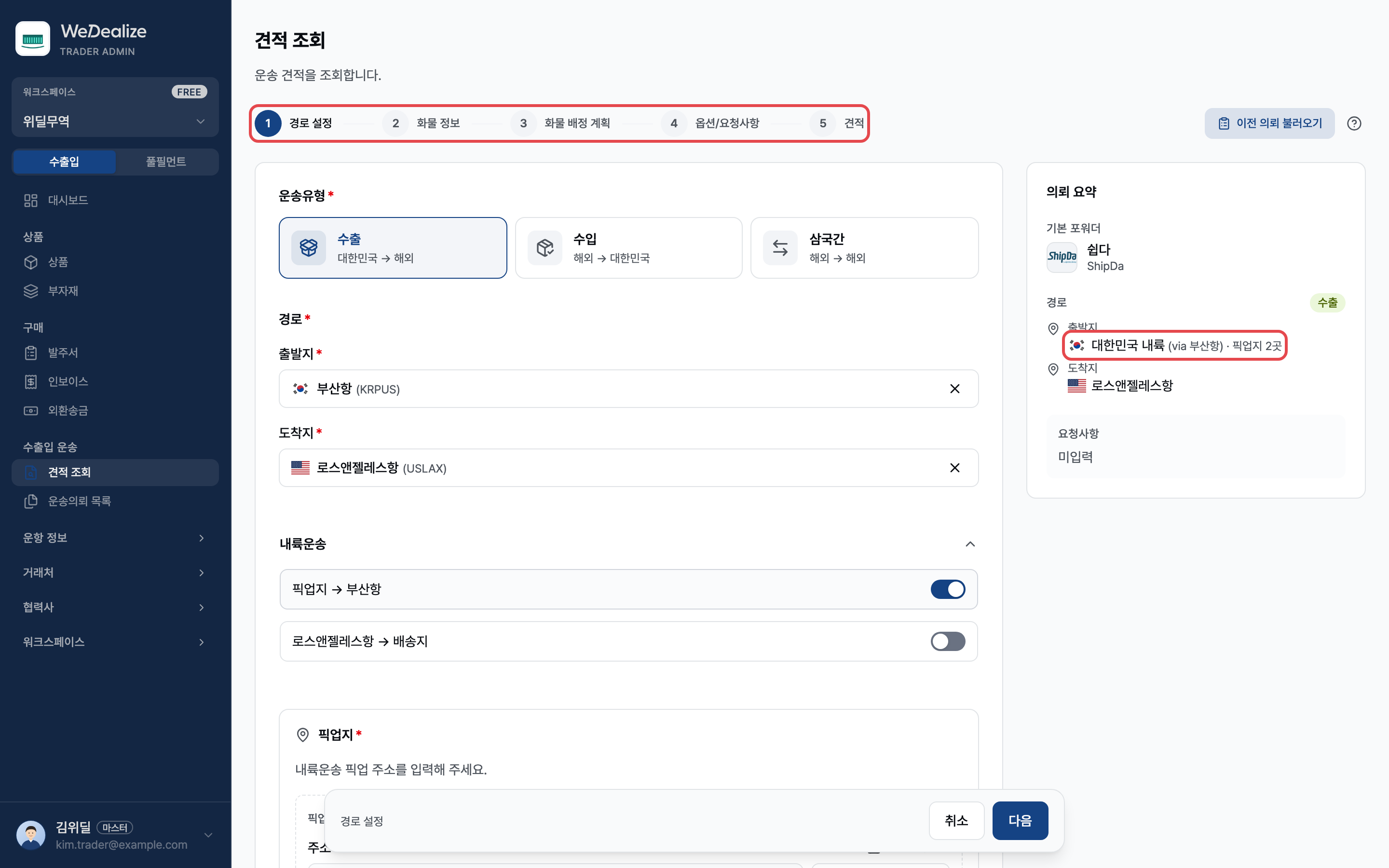
When there are two or more addresses, a “Cargo Allocation Plan” step is added to specify which cargo should be sent to which address.
How to do it
In “Inland Transport,” turn on pickup or delivery and enter the first address. For instructions on how to enter it, see “[Route Setup] Adding Inland Transport.”
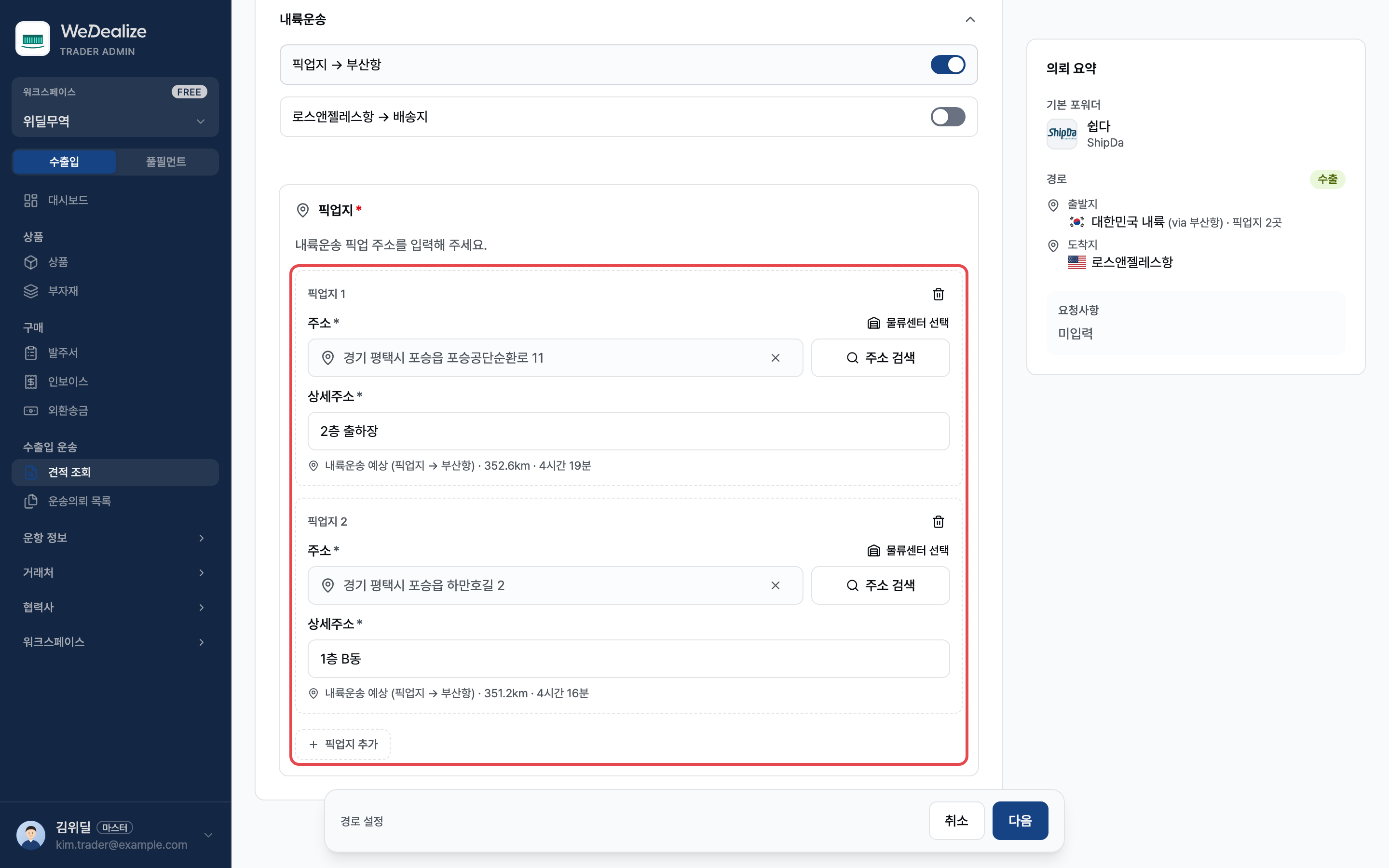
Click “Add Pickup Location” below the address field (for delivery, click “Add Destination”). When a “Pickup Location 2” field appears, enter the address and detailed address in the same way. The distance and travel time to Busan Port are shown separately for each address.
When there are two pickup or destination addresses, the steps at the top of the screen change to five steps: “Route Setup · Cargo Information · Cargo Allocation Plan · Options/Requests · Quote.” The request summary displays the number of addresses, such as “2 Pickup Locations.”
To remove an unnecessary address, click the trash can in the upper-right corner of the field. When the number of addresses is reduced to one, the “Cargo Allocation Plan” step disappears again.
Frequently asked questions
What happens if I enter the same address twice?
As soon as you enter it, the message “The same address already exists among the pickup locations. Please enter a different address or detailed address.” appears. If the locations are different units or floors in the same building, enter different detailed addresses.
What if I click “Add Pickup Location” and leave it blank?
You cannot proceed to the next step, and “Please enter the pickup address.” appears below the blank field. Delete any field you do not use by clicking the trash can.
What do I do in the “Cargo Allocation Plan”?
You divide each type of cargo by specifying how many units to load at each address or send to each address. See “[Cargo Allocation Plan] Dividing Cargo by Address.”