[Set route] Select a fulfillment center as the address
Automatically translated from Korean.
What you can do
If the pickup or delivery location is a fulfillment center registered with WeDealize, you can select the fulfillment center and fill it in directly without searching for the address.
Only fulfillment centers in the same country as the origin or destination for that direction are shown.
Selecting a fulfillment center that is not yet connected will connect it to the workspace.
How to use it
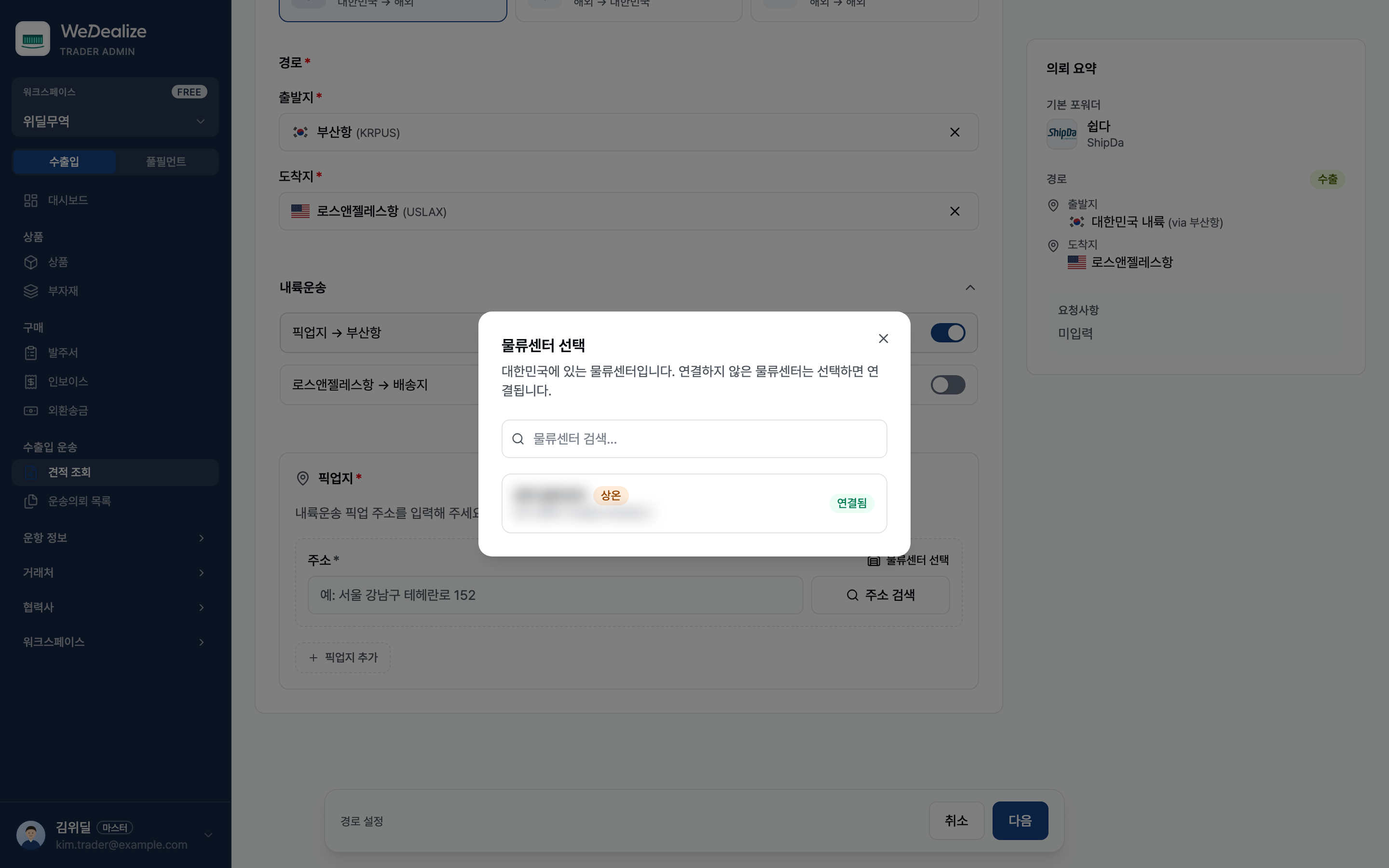
In “Inland transportation,” turn on Pickup or Delivery. Click “Select fulfillment center” at the top right of the address field.
The fulfillment centers in that country appear in the “Select fulfillment center” window. For each center, you can see its name, storage type (ambient, etc.), address, and connection status (Connected, etc.). Click the fulfillment center you want to use.
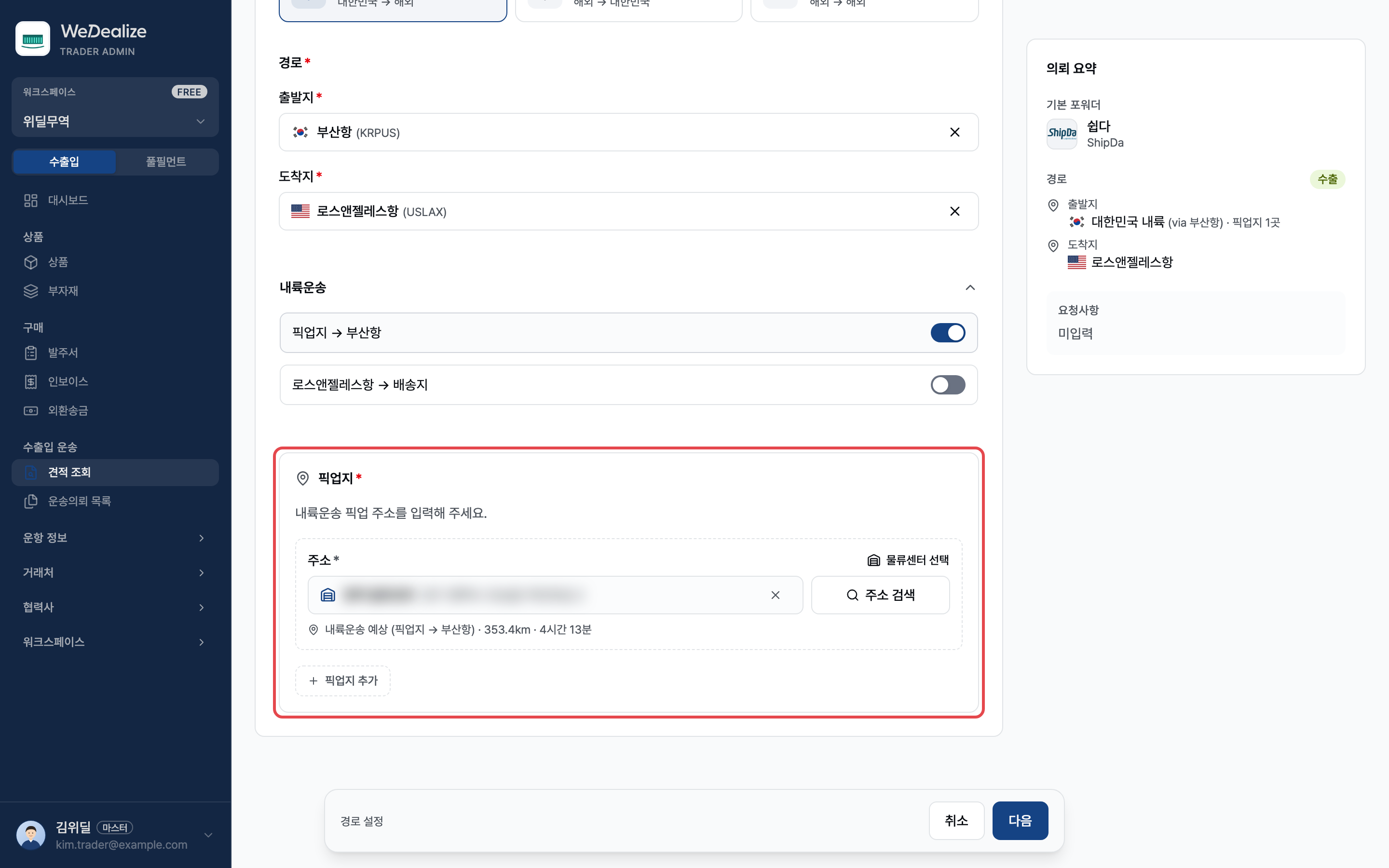
The fulfillment center’s name and address are filled in the address field, and the distance and travel time to the origin or destination appear below. You do not need to enter a detailed address for the fulfillment center.
Frequently asked questions
“There are no fulfillment centers registered in ○○.” appears.
There are no fulfillment centers registered in that country. For example, if the destination is the United States and there are no fulfillment centers in the United States, “There are no fulfillment centers registered in the United States.” appears. In this case, enter the address directly.
“The fulfillment centers in ○○ are not ready yet.” appears.
The fulfillment centers in that country are not yet ready to receive inbound shipments. Fulfillment centers that are still being prepared do not appear in the list, and you can connect to them in this window once preparation is complete. Until then, enter the address directly.
How do I cancel the fulfillment center selection?
Click × on the right side of the address field to clear it. Then fill it in again using “Search address” or “Select fulfillment center.”