[Quote] Compare Freight Rates & Schedules
Automatically translated from Korean.
What you can do
You can compare freight rates registered by the default forwarder and shipping line schedules on one screen.
You can sort by departure date, arrival date, transit time, or freight rate, and filter by direct or transshipment service.
Choose the vessel you prefer and proceed directly to a shipping request.
How to use it
Enter information through Step 3 and click “Next” to see freight rates under “Auto Quote” in Step 4, “Quote.” The least expensive vessel is selected initially.
Under “Search Period,” set the reference date—departure or arrival—and the date range. Initially, the period is set to one month from today.
Organize the list using “Sort” (Departure, Arrival, Transit Time, or Lowest Price) and “Filter” (Direct or Transshipment).
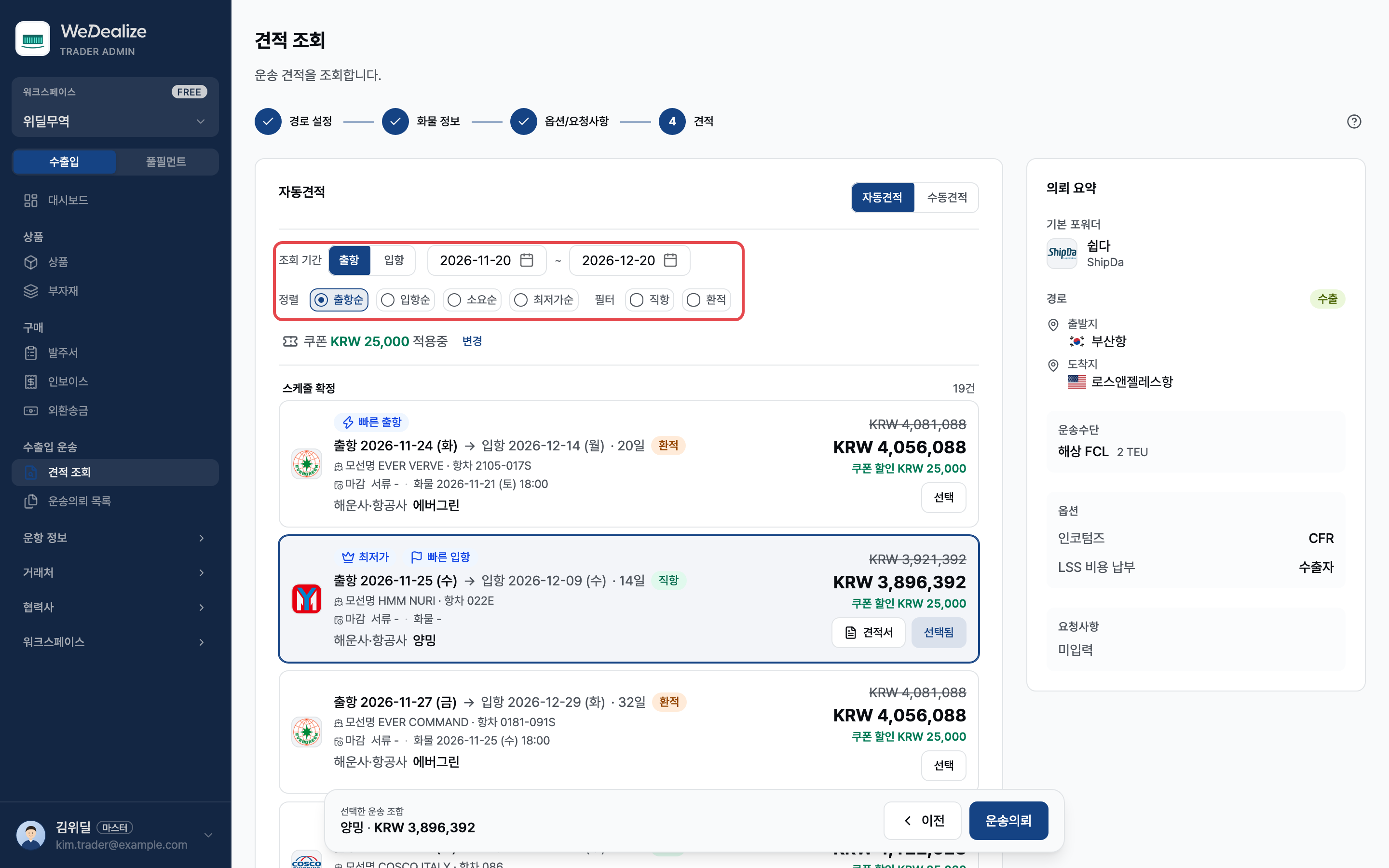
For each vessel, you can see the departure and arrival dates, transit time, direct or transshipment service, mother vessel name and voyage number, document and cargo cutoffs, shipping line, and freight rate. Vessels that stand out are marked as “Lowest Price,” “Earliest Departure,” “Earliest Arrival,” or “Shortest Transit.”
Click “Select” for the vessel you want. The row changes to “Selected,” and a “Quote” button appears next to it. The shipping line and freight rate are shown under “Selected Shipping Combination” below.
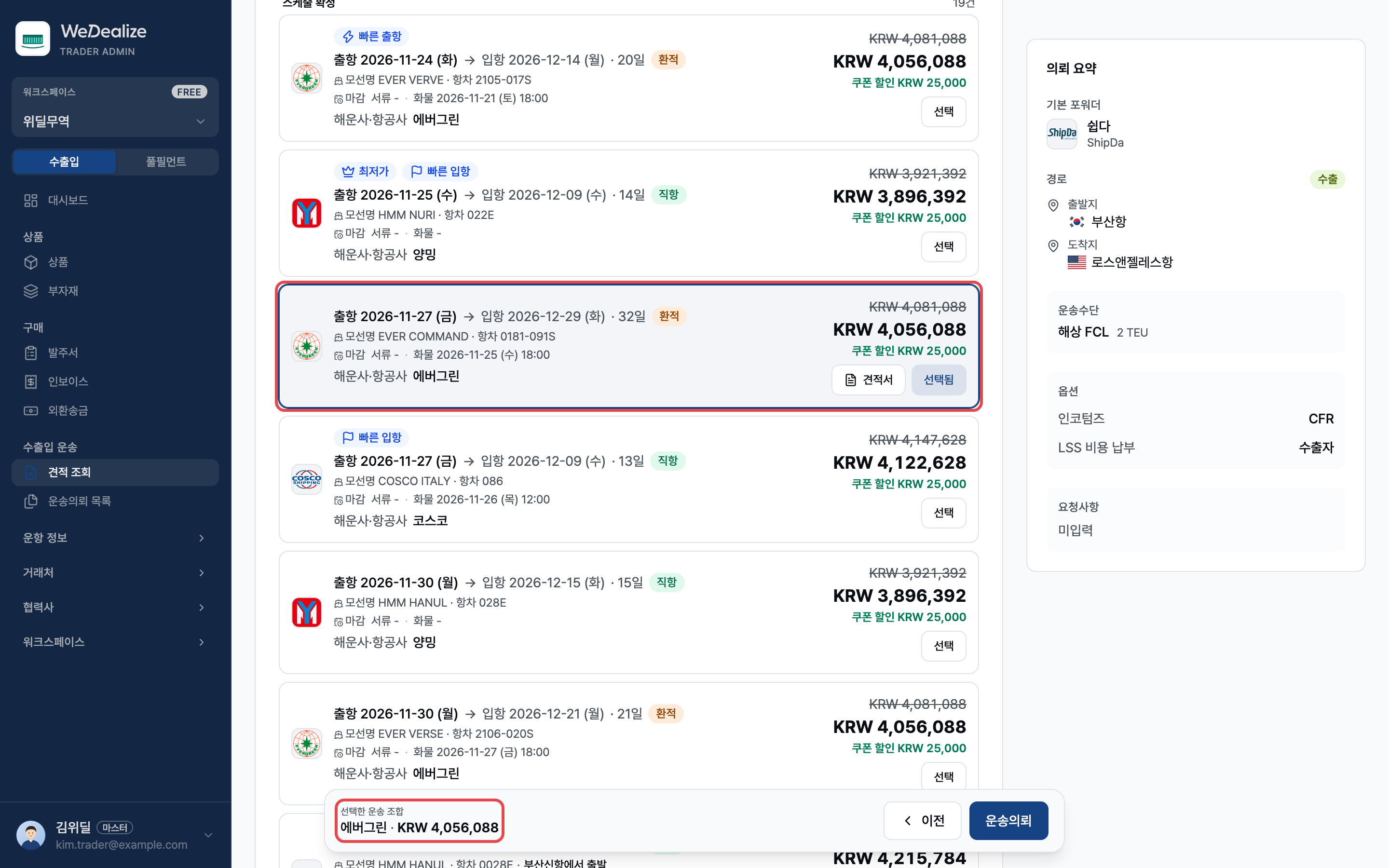
Click “Shipping Request” to create a request. See the article “[Quote] Create a Shipping Request.”
Frequently asked questions
The cutoff is shown as “-”.
This means the shipping line has not yet provided the document and cargo cutoffs for that vessel. If you choose such a vessel, the forwarder will confirm the cutoffs again when making the actual booking.
What is included in the displayed freight rate?
It includes the freight rate registered by the default forwarder and the inland transportation rate you requested. If you selected customs clearance, container stuffing, or unstuffing, it also includes the partner’s charges for those services (see the article “[Quote] Select a Customs Broker and Stuffing/Unstuffing Partner”). All amounts exclude VAT, and the total including VAT can be viewed in the confirmation window after clicking “Shipping Request.” Itemized amounts can be viewed in the “Quote” for the selected vessel (see the article “[Quote] Check the Estimated Quote”). If a coupon is applied, the amount before the discount is struck through and “Coupon Discount” is displayed alongside it.
No freight rates are displayed at all.
If the default forwarder has not registered a freight rate for the route, or if there is a section that cannot be calculated, such as inland transportation, the system switches to a manual quote and displays “There are no freight rates available for an instant quote.” See the article “[Quote] Request a Quote Through a Manual Quote.”