[Workspace] Change the Name or Logo
Automatically translated from Korean.
What you can do
You can change the name of the workspace created initially (e.g., “Kim WeDeal’s Workspace”) to your company or team name.
You can upload your company logo. The logo appears in the upper-left corner of the screen and in the invitation window received by team members.
The name and logo can be changed by Masters and Directors.
Steps
Open the Settings screen
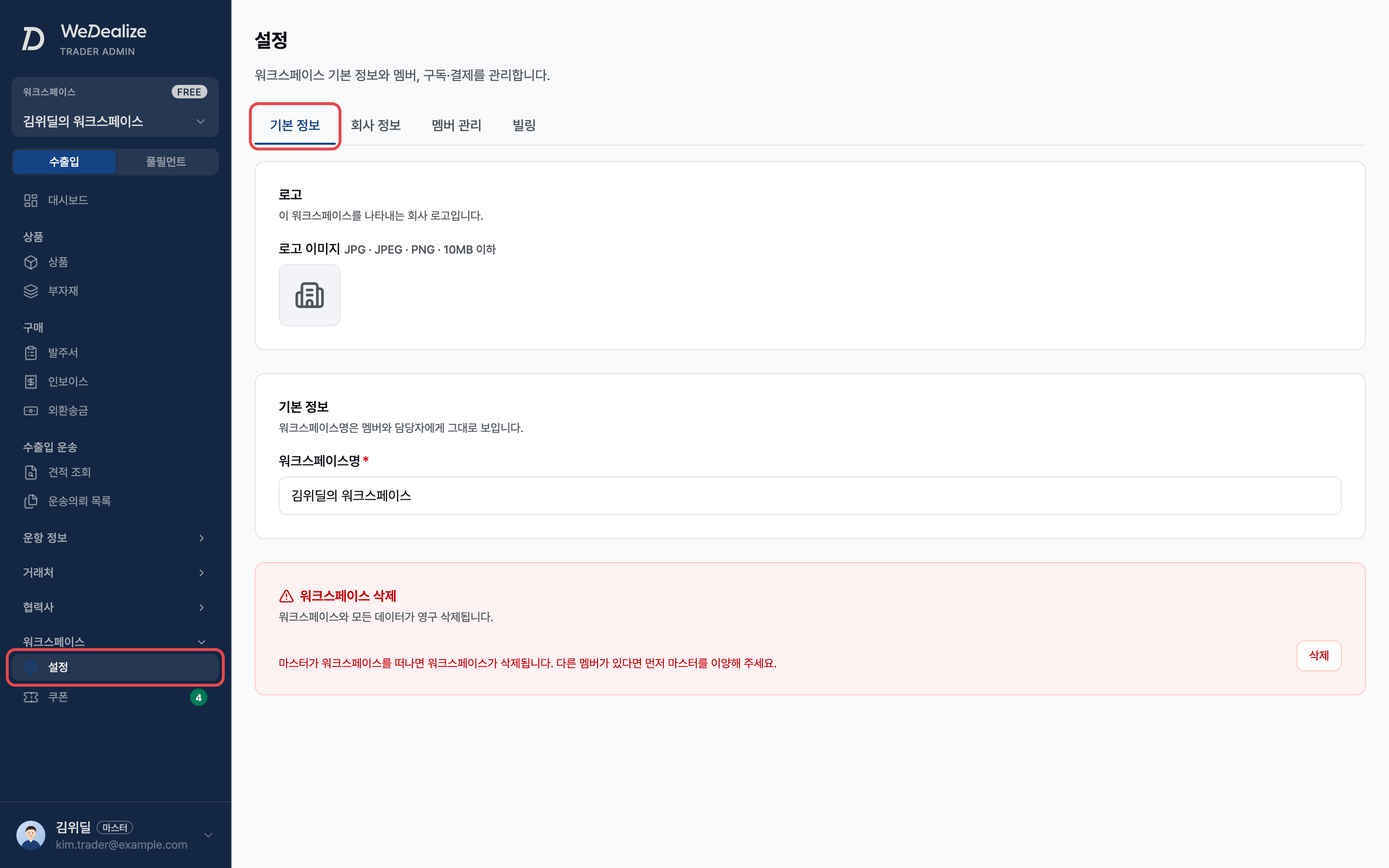
On a computer, click “Workspace” → “Settings” near the bottom of the left menu. If “Workspace” is collapsed, click it to expand it. The “Basic Information” tab opens.
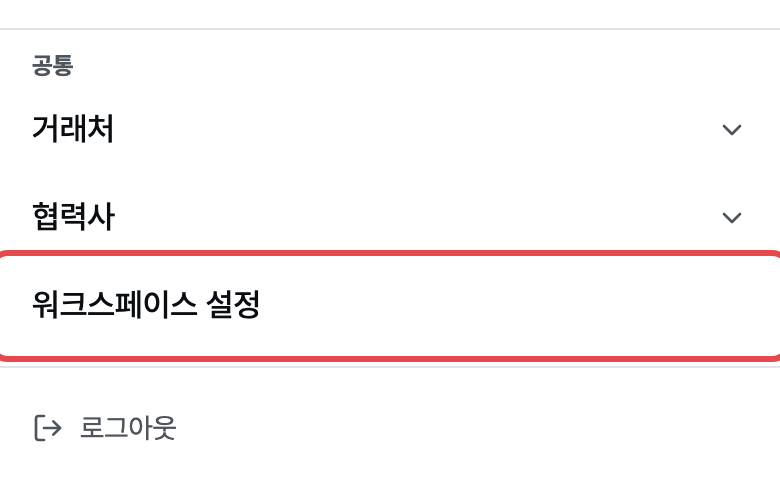
On a phone, tap ☰ in the upper-left corner, then tap “Workspace Settings” at the bottom of the menu.
Upload a logo
Click the square in the “Logo” section and select a logo file. It changes immediately after you select it.

To replace the logo with another one, click the logo again and select a new file. To delete it, click the × in the upper-right corner of the logo.

Change the name
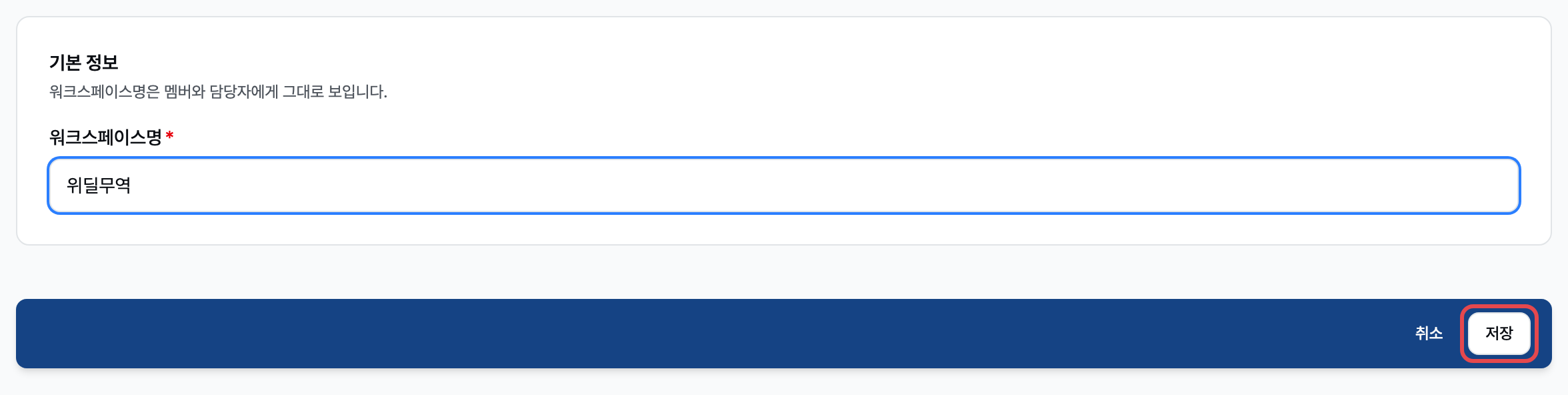
Enter the new name in the “Workspace Name” field.
When you edit the name, a “Save” bar appears at the bottom of the screen. Click “Save.” Unlike the logo, the name changes only after you click “Save.” To undo what you entered, click “Cancel.”
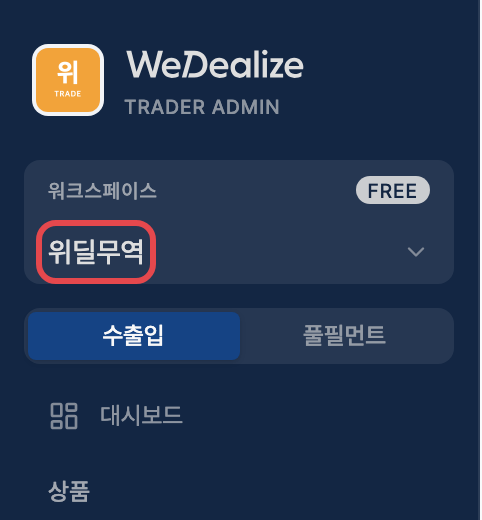
Check that the workspace name in the upper-left corner has changed.
Frequently Asked Questions
The name field is grayed out, and I can’t click the logo.
Managers cannot change the name or logo. Ask a Master or Director to do it.
What file types can I upload for the logo?
Upload a JPG, JPEG, or PNG file no larger than 10 MB.
Can the name be the same as another company’s name?
Yes. WeDealize does not distinguish workspaces by name.
Who can see the changed name?
Team members can see it. It is also visible to your WeDealize representative and the representatives of the freight forwarders and logistics centers you work with.