[My Account] Change Password
Automatically translated from Korean.
What you can do
You can change your password while logged in.
Changing it will log you out of all devices, including the device you are currently using.
Steps
Bottom left: your name → 「My Account」 → open the 「Security」 tab. On mobile: ☰ → the row with your name at the top of the menu → 「Security」 tab.
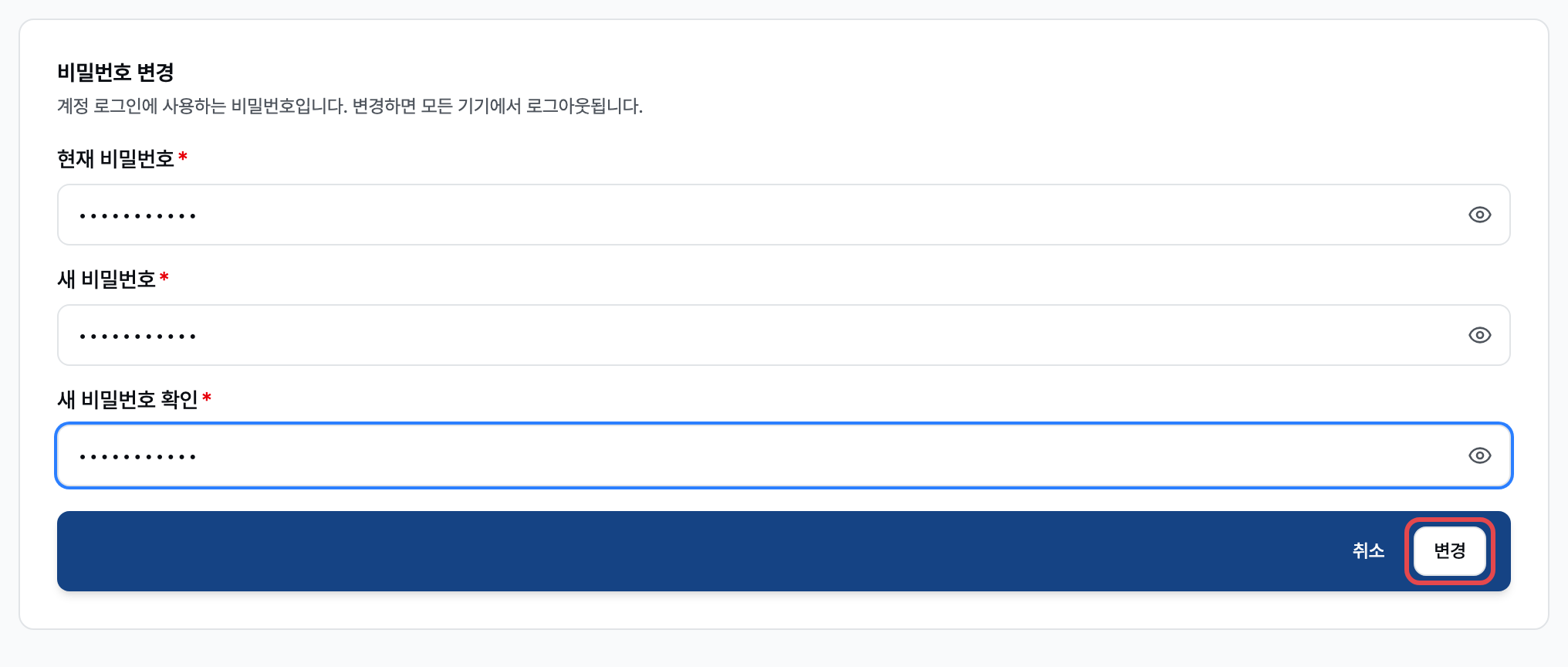
Enter 「Current password」, 「New password」, and 「Confirm new password」.
Click 「Change」.
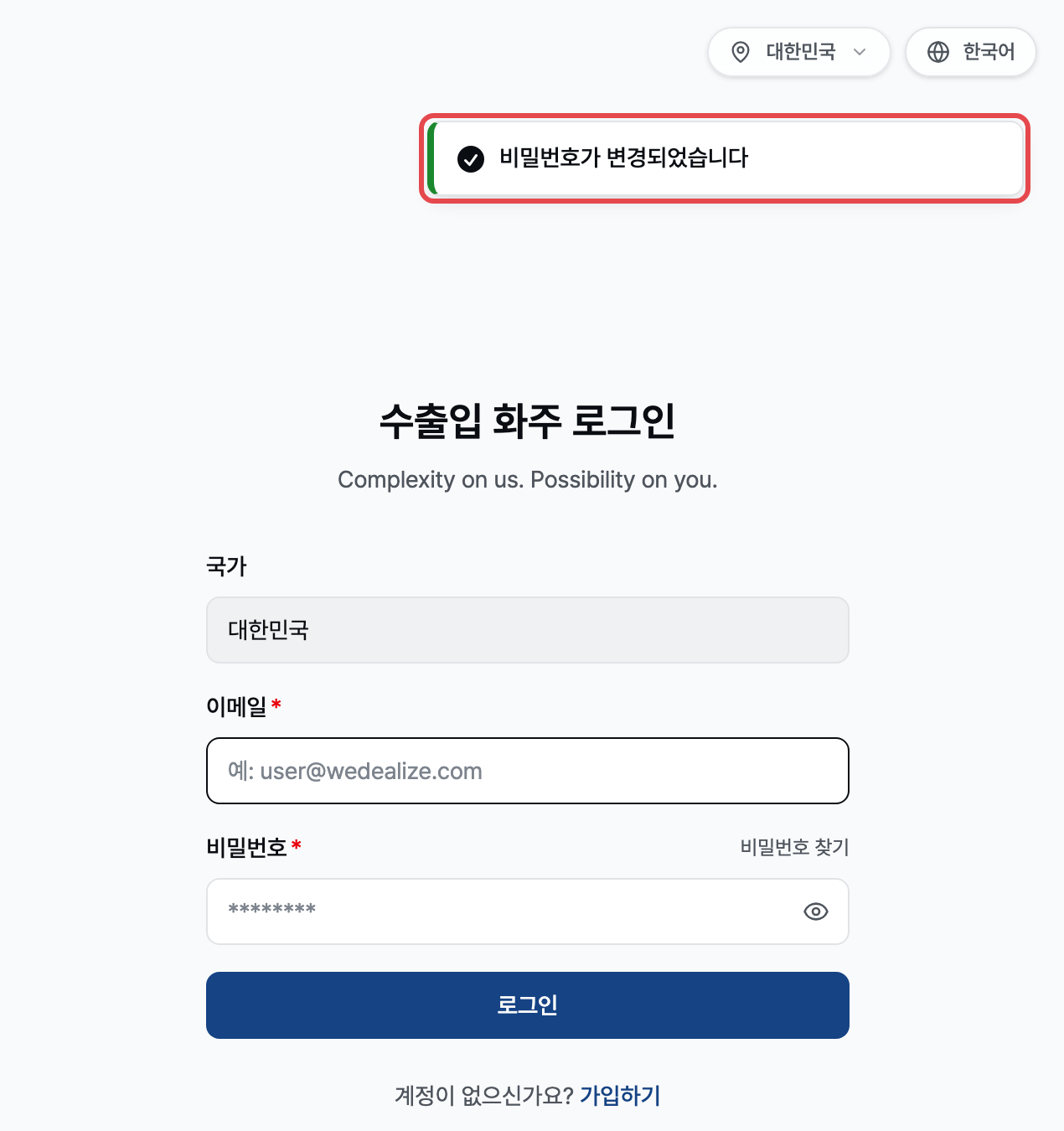
「Your password has been changed」 appears. The screen switches to the login screen. Log in again with your new password.
Frequently asked questions
It only says 「Failed to change password」
It is one of the cases below. We do not tell you which one.
When the current password is incorrect
When the new password is the same as your current password
When you entered it incorrectly five times within 15 minutes and were temporarily blocked — wait more than 15 minutes and try again
What are the password requirements?
The password must be 8–20 characters long and include letters, numbers, and special characters. You cannot use a password containing repeated characters, consecutive characters, your username or phone number, or common words.
It says 「Passwords do not match」
The entries in 「New password」 and 「Confirm new password」 are different. Enter the same thing in both fields.
I forgot my current password
Log out, then set a new password using 「Find password」 on the login screen.