[Invite Team Members] Invite a Team Member
Automatically translated from Korean.
What you can do
Invite colleagues by email so you can work in the same workspace.
Set a colleague's role as Director or Manager when inviting them.
Invite multiple people one after another without closing the window.
Steps
In the left menu, click “Workspace” → “Settings.” If “Workspace” is collapsed, click it first to expand it. On a mobile phone, tap ☰ → “Workspace Settings.”
Open the “Member Management” tab and click “Invite Members.”

Enter your colleague’s email address.
Under “Role,” select Director or Manager. Manager is selected by default.
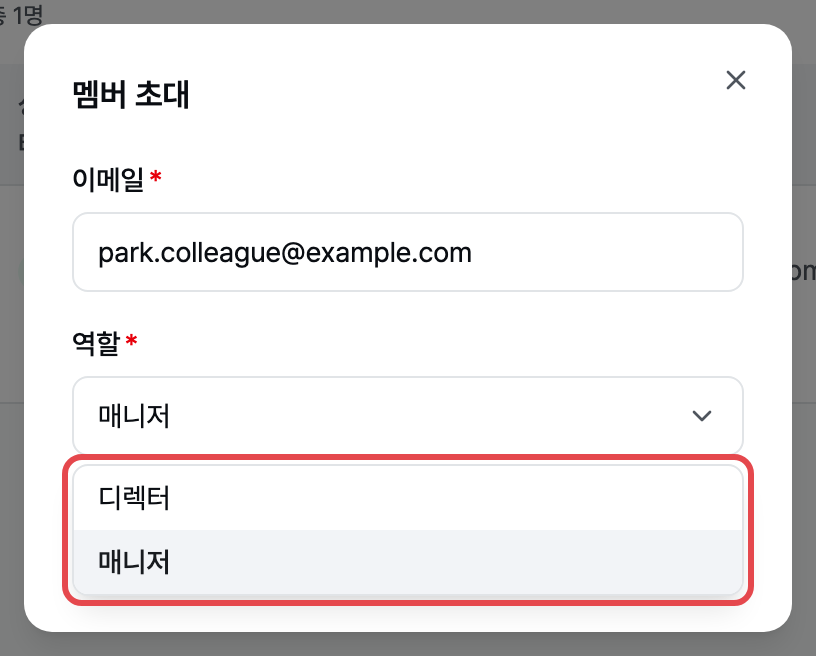
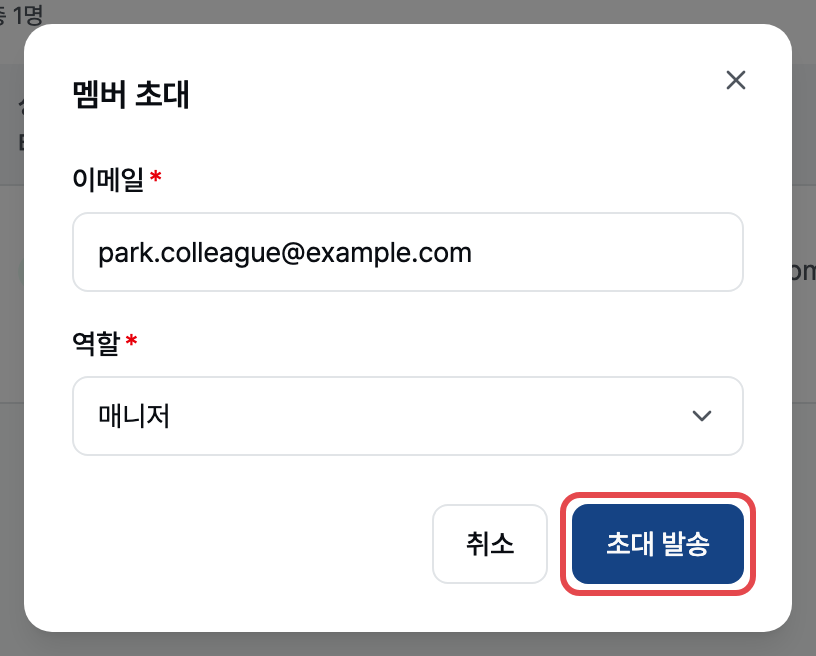
Click “Send Invitation.”
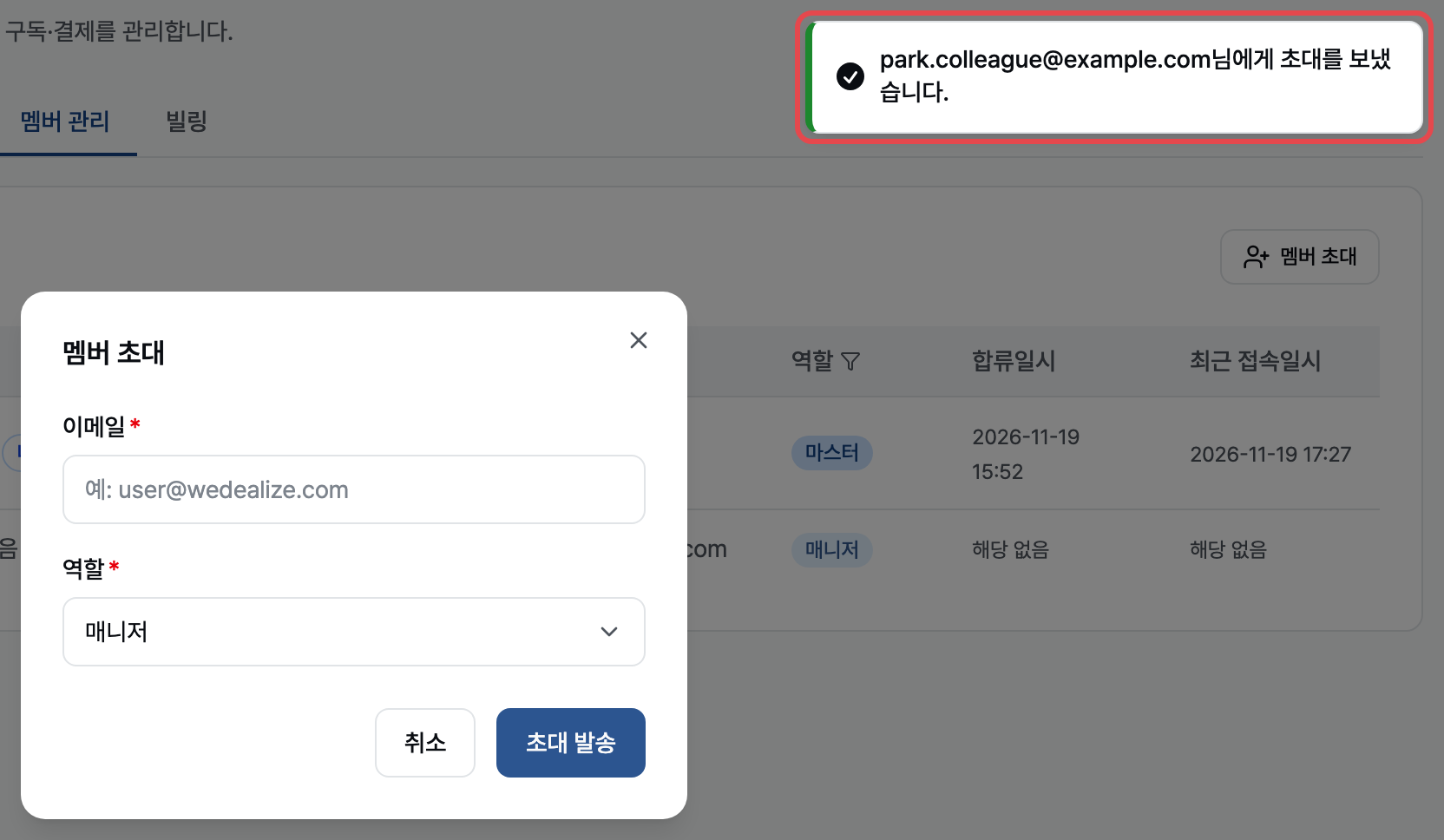
“An invitation has been sent to …” appears at the top of the screen. Your colleague will receive an invitation email.
The invitation window stays open, and only the email field is cleared. If you have more people to invite, enter their email addresses one after another. When you are done, close the window with “Cancel” or ×.
A “Pending” row appears below the member list. When your colleague accepts the invitation, it changes to “Active”; if they decline it, it changes to “Declined.”

Frequently Asked Questions
What is the difference between a Director and a Manager?
A Director can change a Manager’s role. Directors can also edit the workspace name and company information. Managers cannot change these settings. For more details, see “[Managing Team Members] Changing a Team Member’s Role.”
I’m a Manager, but I can’t select a role.
Managers can invite colleagues only as Managers. To invite someone as a Director, ask a Master or Director.
My colleague doesn’t have a WeDealize account yet.
You can invite them even if they don’t have an account. After your colleague signs up through the link in the invitation email and accepts the invitation, they will join the workspace. See “[Invite Team Members] Sign Up and Join Through an Invitation Email.”
Do invitations expire?
They are valid for 72 hours after being sent. When the invitation expires, the row changes to “Expired.” Click the row and then click “Invite Again” to open an invitation window with the email address filled in. Click “Send Invitation” to send a new invitation.
I see “The invitation was created, but the email could not be sent.”
The invitation was created in the list with the status “Pending.” Only the email was not sent. After a short while, click the row and then click “Resend Invitation.” For details, see “[Invite Team Members] Resending or Canceling an Invitation.”
I see “An invitation has already been sent.”
An invitation sent to that email address is still “Pending.” To resend the email, see “[Invite Team Members] Resending or Canceling an Invitation.”
I see “This person is already a member of this workspace” or “You cannot invite yourself.”
The email address you entered belongs to an existing team member or is your own email address. Email addresses are treated as the same regardless of capitalization. Check the email address again.