[Invite Team Member] Sign up via the invitation email and join
Automatically translated from Korean.
What you can do
Even if you don’t have a WeDealize account, you can sign up through the invitation email and join your colleague’s workspace.
There is no email verification step when you sign up through an invitation.
Steps
Open the email you received titled 「You’ve been invited to the ○○ workspace」 and click 「Accept invitation」.
The 「Create invited account」 screen opens. The invited email address is entered in the email field. You cannot edit this field.
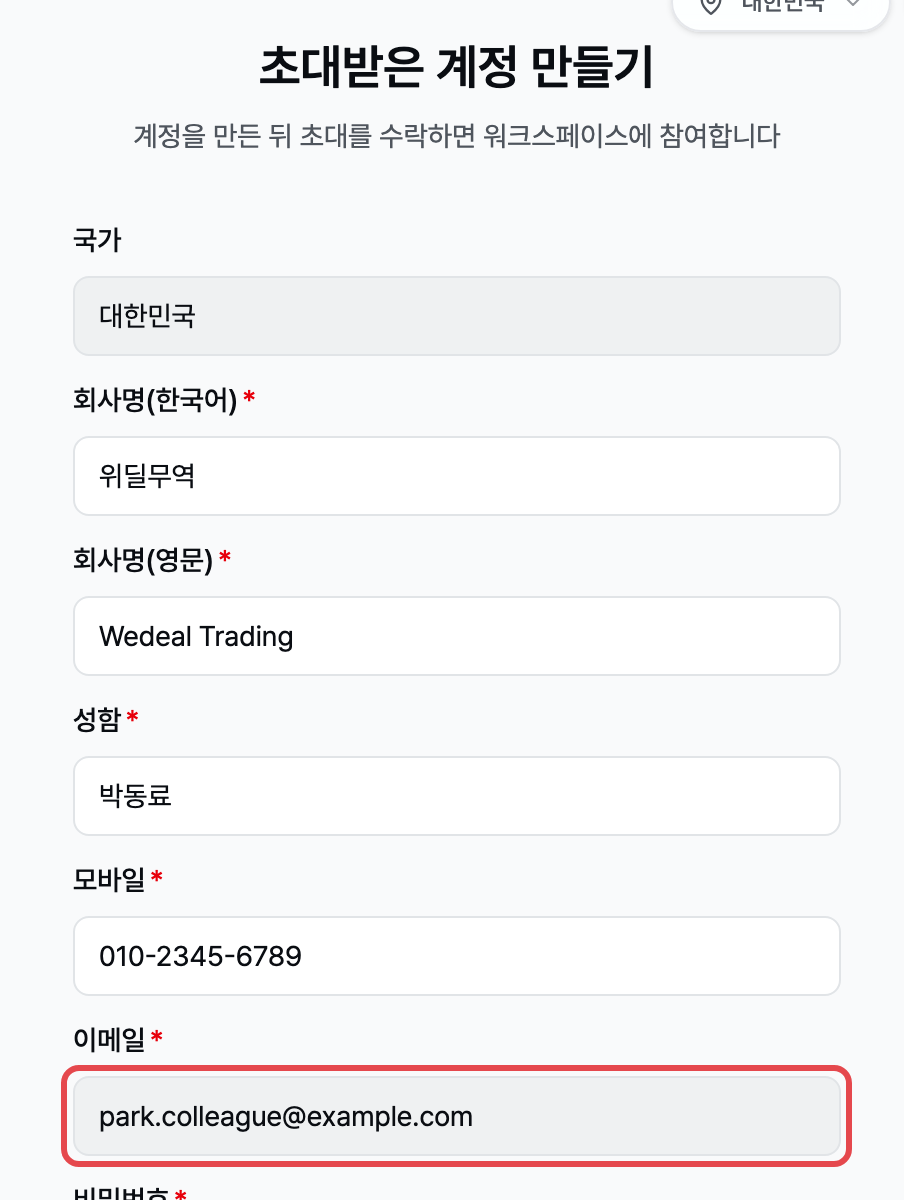
Enter your company name (Korean · English), name, mobile number, and password.
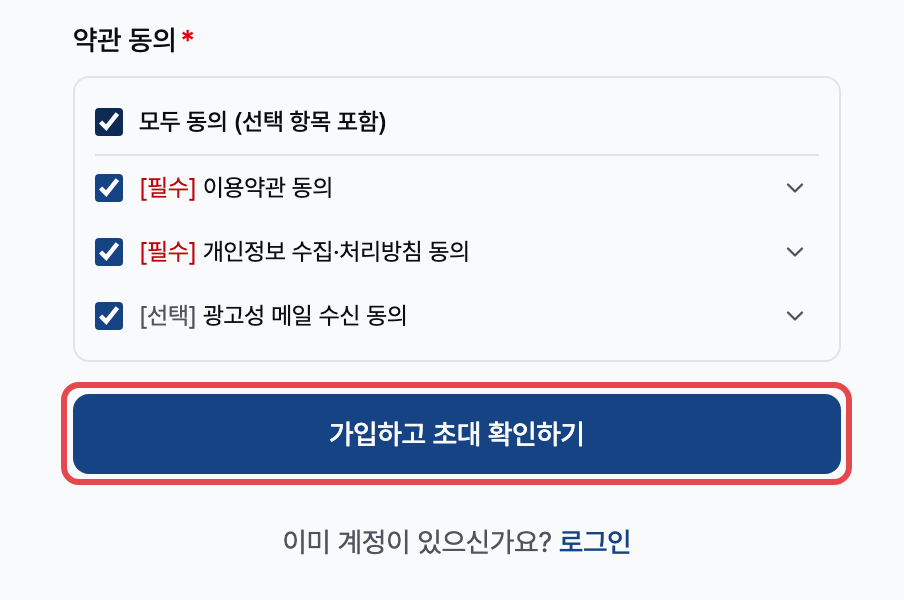
Agree to the Terms. Then click 「Sign up and check invitation」.
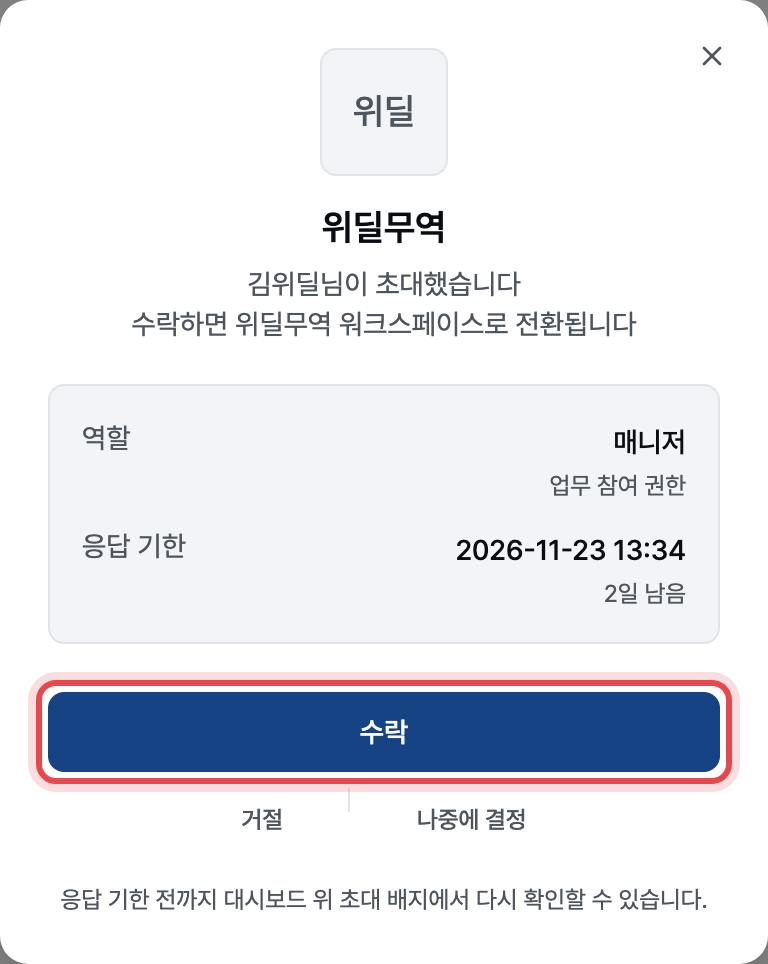
After sign-up is complete, your dashboard opens. An invitation confirmation window appears on top of it. Check the inviter, role, and response deadline, then click 「Accept」.
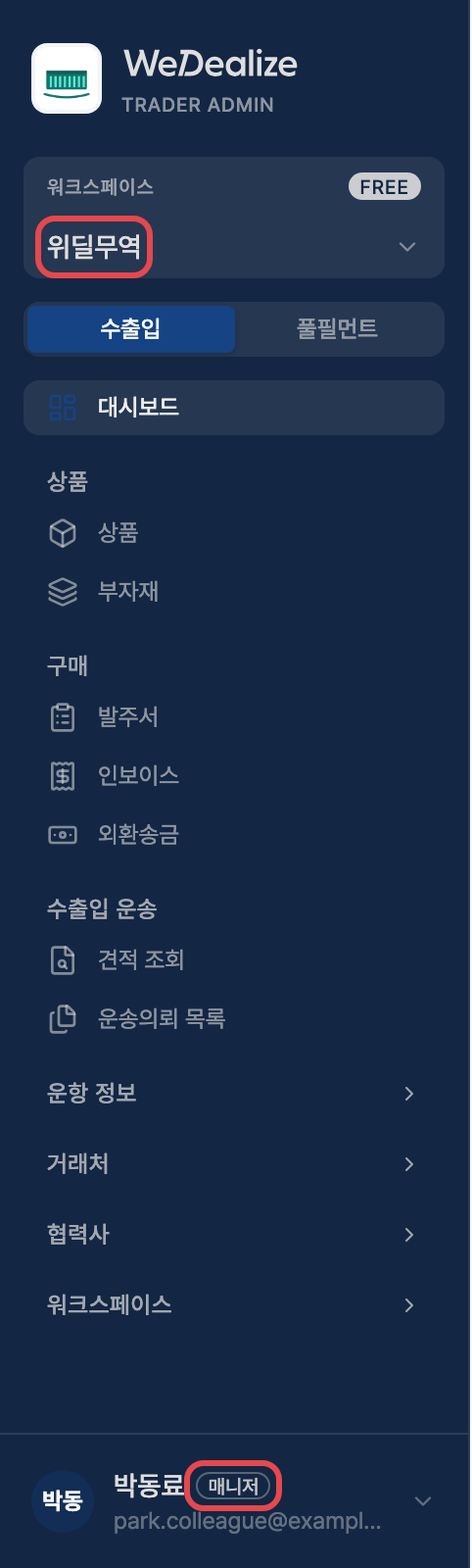
「You’ve joined ○○」 appears. The screen switches to the invited workspace. Check the workspace name at the top left and your role at the bottom left.
Frequently asked questions
I already have a WeDealize account.
You can simply log in without signing up. After you log in, the invitation confirmation window appears. See the article 「[Invite Team Member] Accepting or declining a received invitation」.
What should I enter for the company name?
Enter the name of the company you work for. This company name is used for the company information of a separate workspace created under your name. The company information of the invited workspace does not change.
I closed the invitation confirmation window.
Click the 「Pending invitations」 badge above the dashboard to open it again.

A 「○○ workspace」 was created too.
Even when you sign up through an invitation, a separate workspace is created under your name. You are the master there. Click the workspace name at the top left to switch between the two workspaces.
I want to sign up with a different email address.
You can sign up only with the invited email address. If you want to use a different email address, ask the inviter to send a new invitation to that address.
The 「Expired invitation」 or 「Invalid invitation」 screen appears.
An 「Expired invitation」 is an invitation that is more than 72 hours old. An 「Invalid invitation」 is an invitation that was canceled or has already been processed. In either case, ask the inviter to send a new invitation.
It says I can’t set a password.
Your password must be 8–20 characters long and include letters, numbers, and special characters. You cannot use a password containing repeated or consecutive characters, your user ID or phone number, or common words.