[Invite Team Members] Accept or Decline an Invitation
Automatically translated from Korean.
What you can do
If you already have a WeDealize account, you can accept the invitation you received and join right away.
You can decline an invitation you do not want.
If you have difficulty deciding now, you can postpone it by selecting “Decide later.”
Steps
Log in with the email account that received the invitation. If you click “Accept invitation” in the email while logged out, the login screen appears first.
An invitation confirmation window appears on the dashboard. Check the inviter, role, and response deadline.
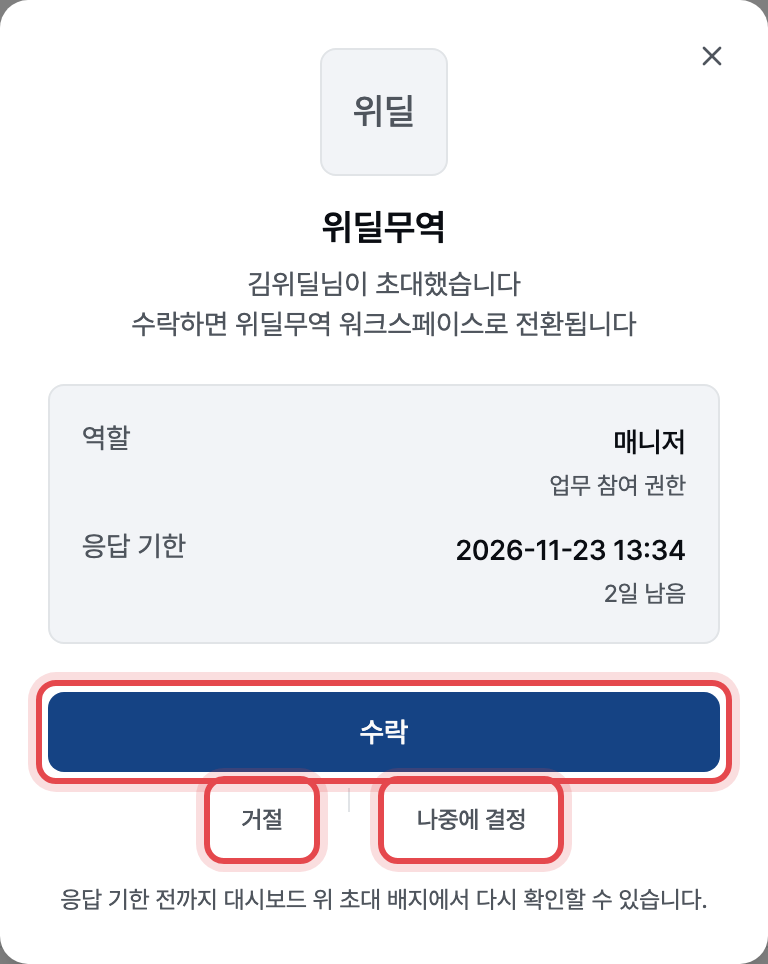
To join, click “Accept.” “You joined ○○” appears, and the screen switches to that workspace.

If you do not want to join, click “Decline.” “You declined the invitation” appears.
To decide later, click “Decide later.” The window closes. This invitation will not appear automatically the next time you log in.
Frequently asked questions
Where can I view an invitation again after selecting “Decide later”?
Click the “Pending invitations” badge at the top of the dashboard to open it again.

What is the difference between closing it with × and selecting “Decide later”?
If you close it with ×, the window appears again the next time you enter the dashboard. If you select “Decide later,” it will not appear again. However, if the response deadline is within 24 hours, the postponed invitation will appear again.
I declined an invitation by mistake.
A declined invitation cannot be undone. Ask the person who sent the invitation to invite you again.
The invitation confirmation window does not appear.
Make sure you are logged in with the email account that received the invitation. You cannot view the invitation from another account. Invitations that are more than 72 hours old also do not appear. If you previously selected “Decide later,” click the “Pending invitations” badge to open it.
I have multiple invitations.
Invitations appear one at a time in the invitation confirmation window. After you accept, decline, or postpone one invitation, the next one appears.