[Team Management] View team member list
Automatically translated from Korean.
What you can do
View workspace members and sent invitations in one list.
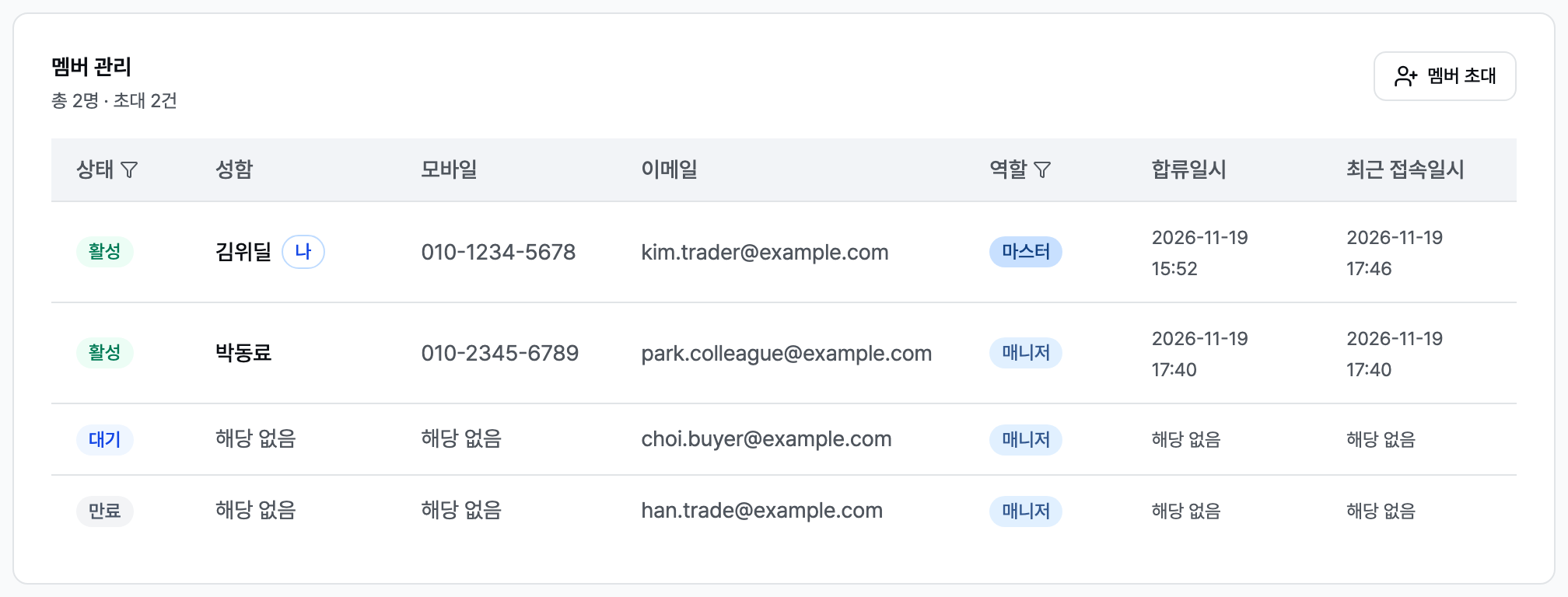
For each team member, you can view their status, name, mobile number, email, role, join date and time, and last access date and time.
On a computer, you can filter the list by status and role.
How to access
Open the 「Workspace」 → 「Settings」 → 「Member Management」 tab in the left menu. On a mobile phone, tap ☰ → 「Workspace settings」, then open the same tab.
Check the number of team members and invitations in the list under 「Total ○ people · ○ invitations」 at the top. The invitation count includes not only pending invitations but also expired, canceled, and declined invitations. When filtered, only the filtered rows are counted. The row marked 「Me」 is your row.
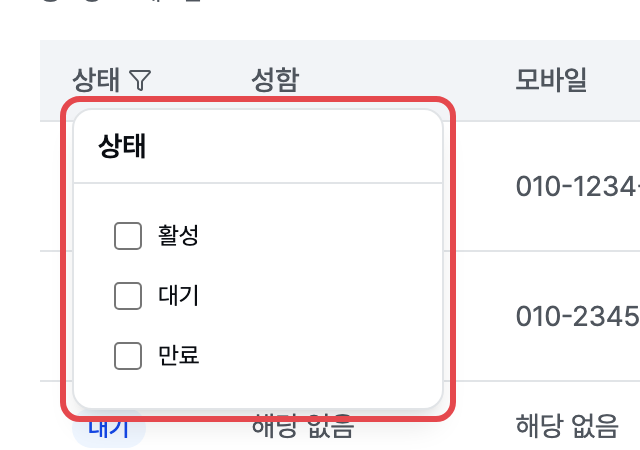
To view only selected statuses, click the funnel-shaped button next to the 「Status」 header and select the statuses you want.
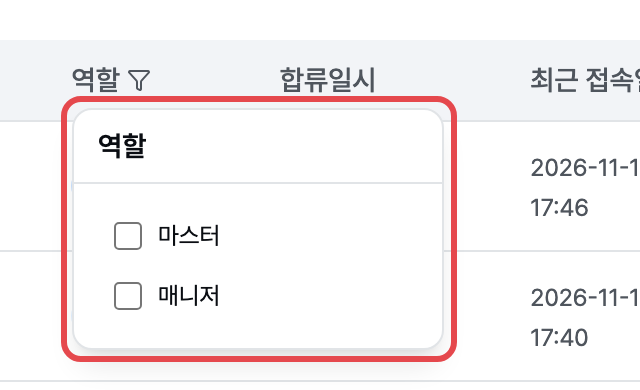
To filter by role, click the funnel-shaped button next to the 「Role」 header.
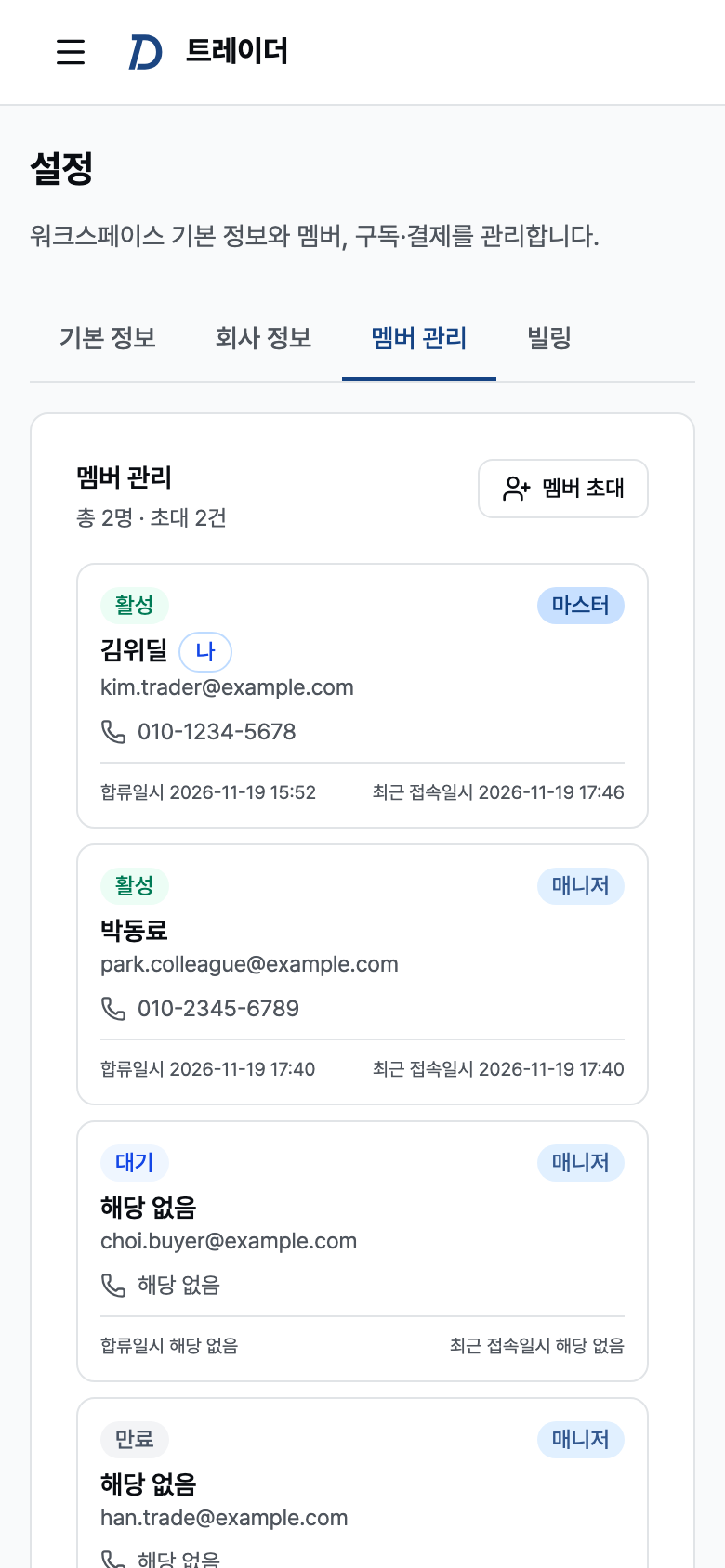
On a mobile phone, team members are displayed one card at a time. Filtering is available only on a computer.
Frequently asked questions
What do the status labels mean?
Label | Meaning |
|---|---|
Active | A team member currently working with you |
Pending | An invitation that has been sent but has not yet received a response |
Expired | An invitation that expired because there was no response within 72 hours |
Canceled | An invitation withdrawn by the sender |
Declined | An invitation declined by the recipient |
Suspended | A team member whose account has been suspended and who cannot log in |
Withdrawn | A team member who has withdrawn from their WeDealize account |
There are only a few statuses in the filter list
You can select only statuses that are currently in the list.
What appears when I click a row?
An information panel for that team member or invitation opens on the right. You can perform tasks such as changing a role or resending an invitation from this panel.