[Team Management] Changing a Team Member's Role
Automatically translated from Korean.
What you can do
You can change a team member's role to Director or Manager.
What you can do differs by role.
Role | Change role | Edit name and company information |
|---|---|---|
Master | Can change both Directors and Managers | Can do this |
Director | Can change Managers only | Can do this |
Manager | Cannot change | Cannot do this |
Steps
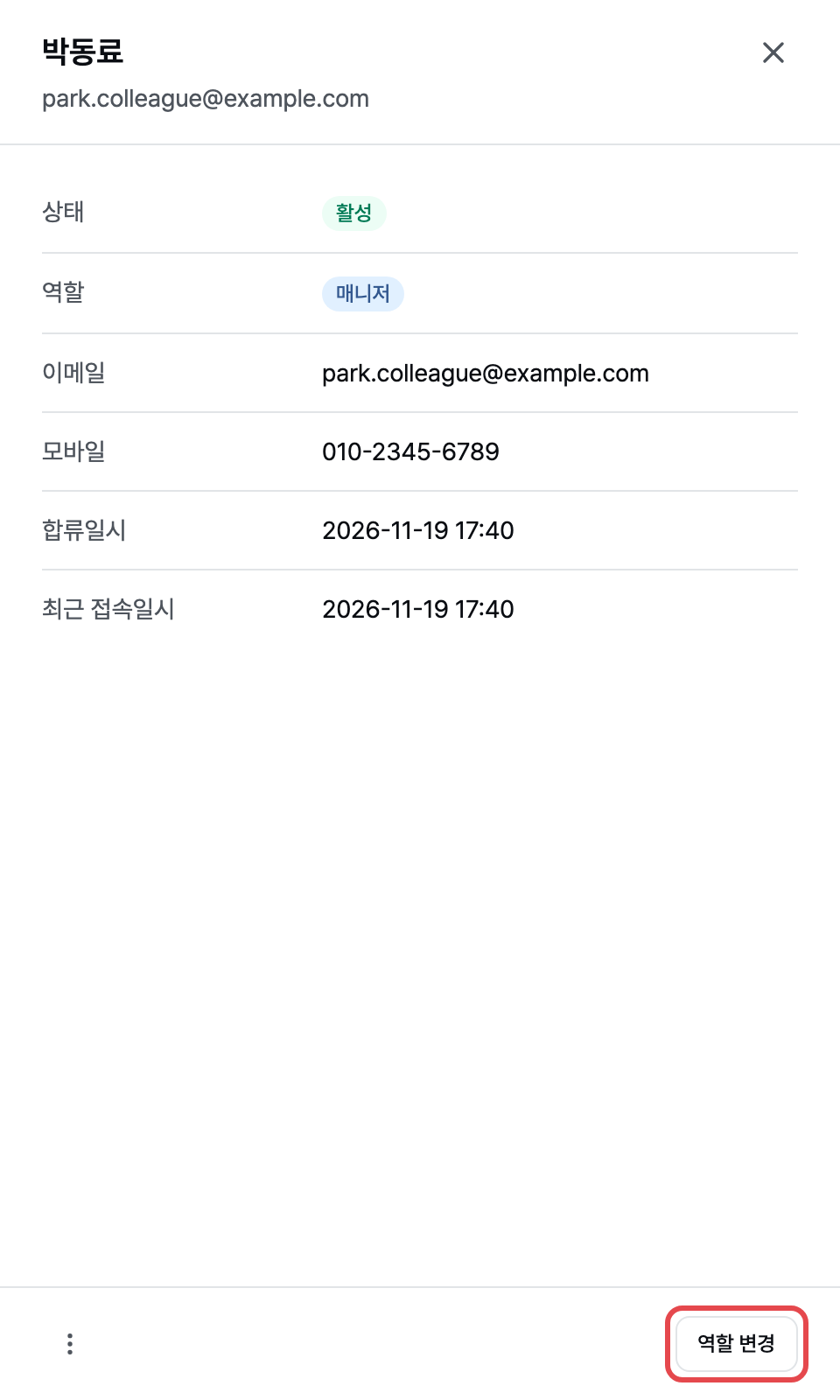
Click a team member's row in the left menu under "Workspace" → "Settings" → the "Member Management" tab. The team member information panel opens on the right.
Click "Change role" at the bottom of the panel.
Select a new role. "Current" is shown next to the current role. Click "Change".
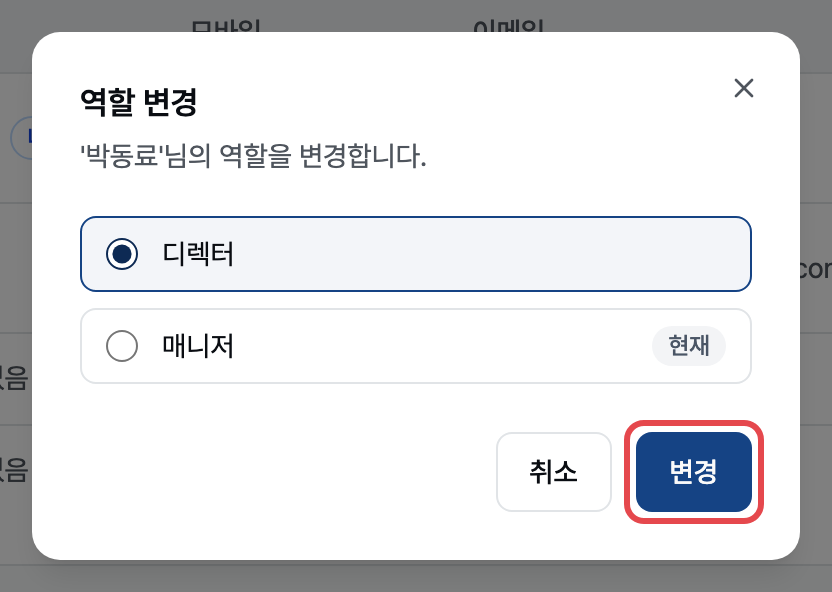
The message "Changed ○○'s role to ○○." appears.

Frequently Asked Questions
I don't see "Change role"
There is no "Change role" option on my row. You cannot change your own role. The "Change role" option also does not appear on the Manager screen. Directors can see it only on Manager rows.
I promoted someone to Director, but I can't change them back to Manager
A Director cannot change another Director's role. Therefore, if a Director promotes a Manager to Director, they cannot reverse it themselves. When promoting someone, the following notice appears: "Once promoted to Director, you cannot reverse this change yourself. Only the Master can demote you to Manager." Ask the Master to reverse it.
Can I change someone to Master?
You cannot select Master through the role change function. There is only one Master in a workspace. To transfer the Master role to someone else, see the article "[Team Management] Transferring the Master Role".