[Team Management] Removing a Team Member
Automatically translated from Korean.
What you can do
The master and directors can remove team members from the workspace.
The master can remove directors and managers. Directors can remove managers only.
Steps
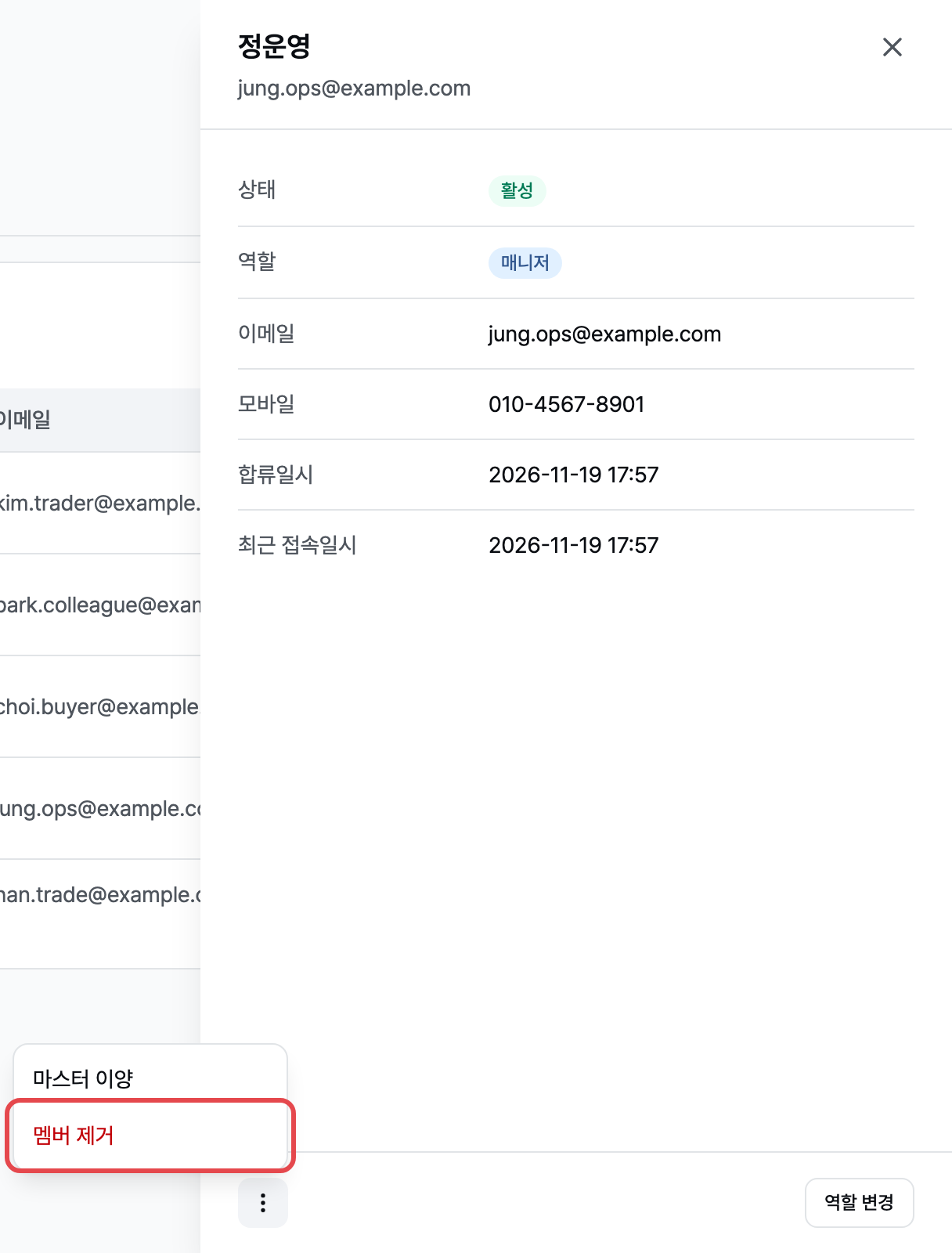
In the left menu, select 「Workspace」 → 「Settings」 → the 「Member Management」 tab, then select the row of the team member you want to remove.
Click the three-dot button (⋮) at the bottom of the right panel and select 「Remove Member」.
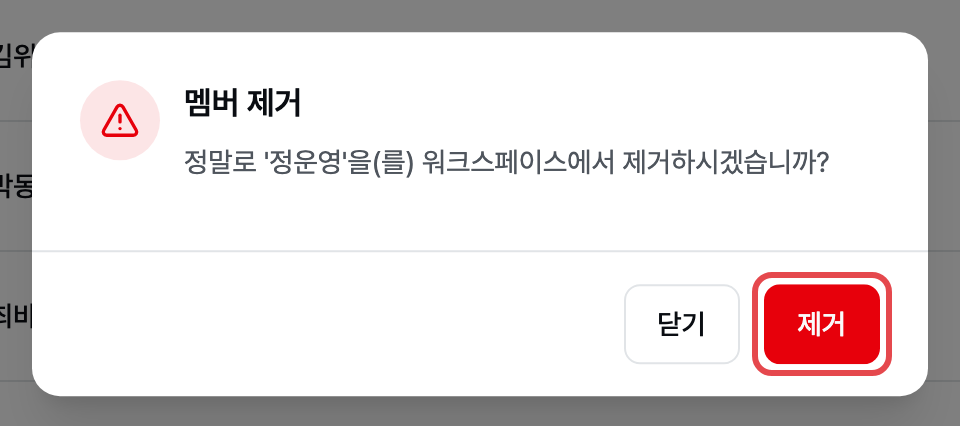
Click the red 「Remove」 button in the confirmation window. To cancel, click 「Close」.
「○○ has been removed from the workspace.」 appears. The team member’s row disappears from the list.

Frequently Asked Questions
What happens to the transportation requests assigned to the removed team member?
They remain as they are. Removing a team member does not stop requests that are in progress.
What does the removed team member see?
The team member receives a notification email. If the team member was viewing this workspace, it switches to the team member’s other workspace when they move to the next screen.
I don’t see 「Remove Member」.
Managers cannot remove team members. Directors cannot remove other directors or the master. 「Remove Member」 is not available on my own row either. To leave on your own, see the article 「[Team Management] Leaving a Workspace」.
Can I invite a removed team member again?
Yes. Invite them again as described in the article 「[Inviting Team Members] Inviting a Team Member」.