[Team Member Management] Transfer Master Role
Automatically translated from Korean.
What you can do
The master can transfer the master role to another team member.
After the transfer, the recipient becomes the master. The person who transferred it becomes a director.
There is always one master in a workspace.
Steps
In the left menu, go to 「Workspace」 → 「Settings」 → the 「Member Management」 tab, and click the row of the team member who will receive the master role.
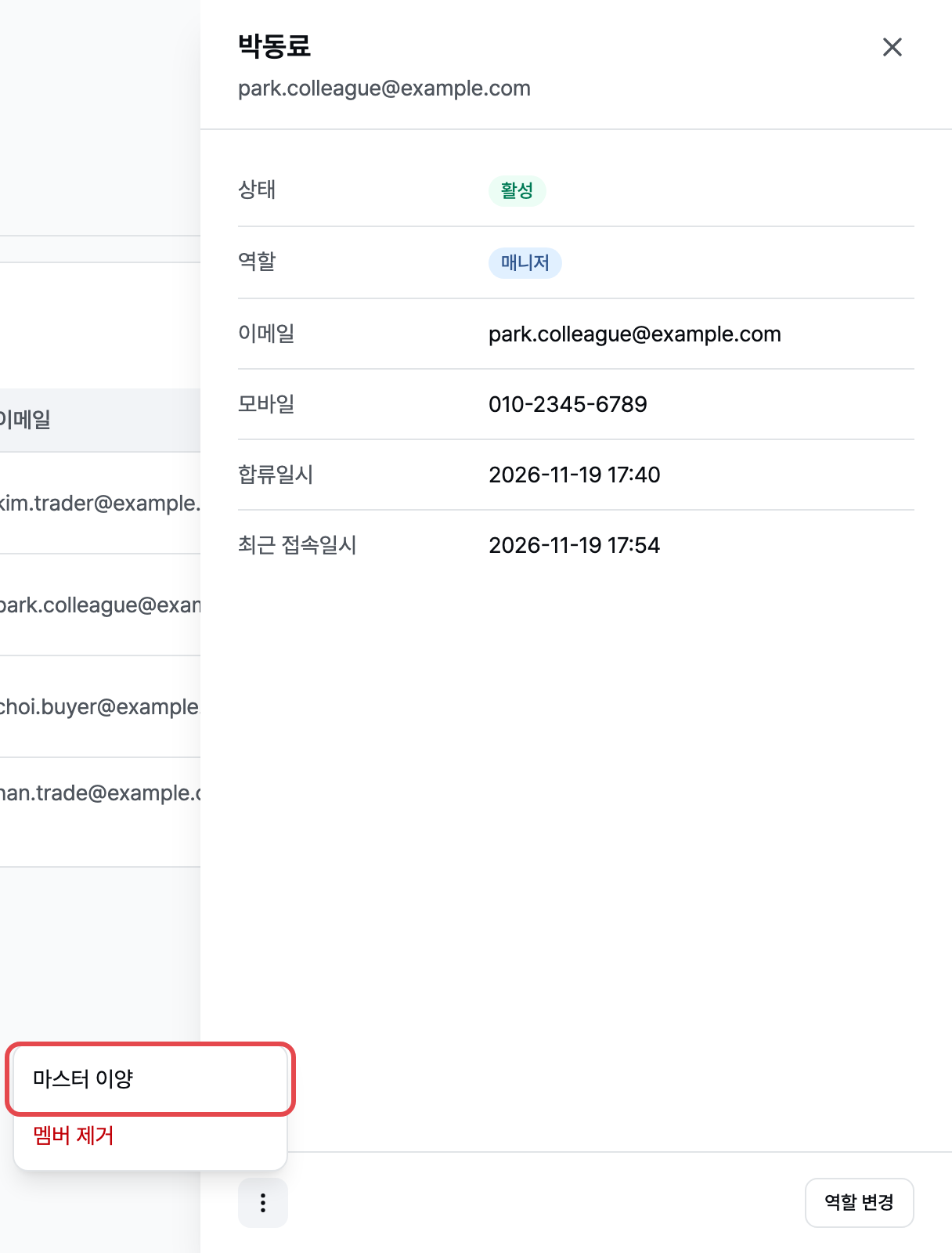
Click the three-dot button (⋮) at the bottom of the right pane and select 「Transfer Master Role」.
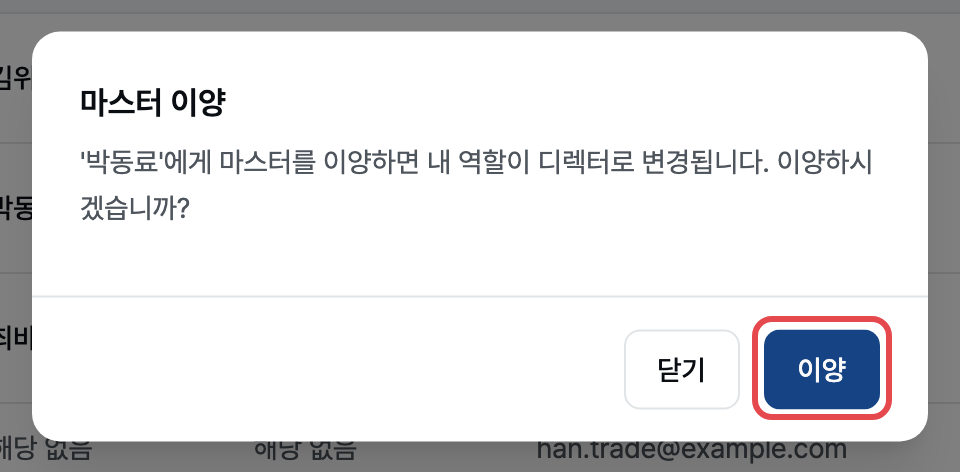
Click 「Transfer」 in the confirmation window. To cancel, click 「Close」.
「The master role has been transferred to ○○.」 appears.

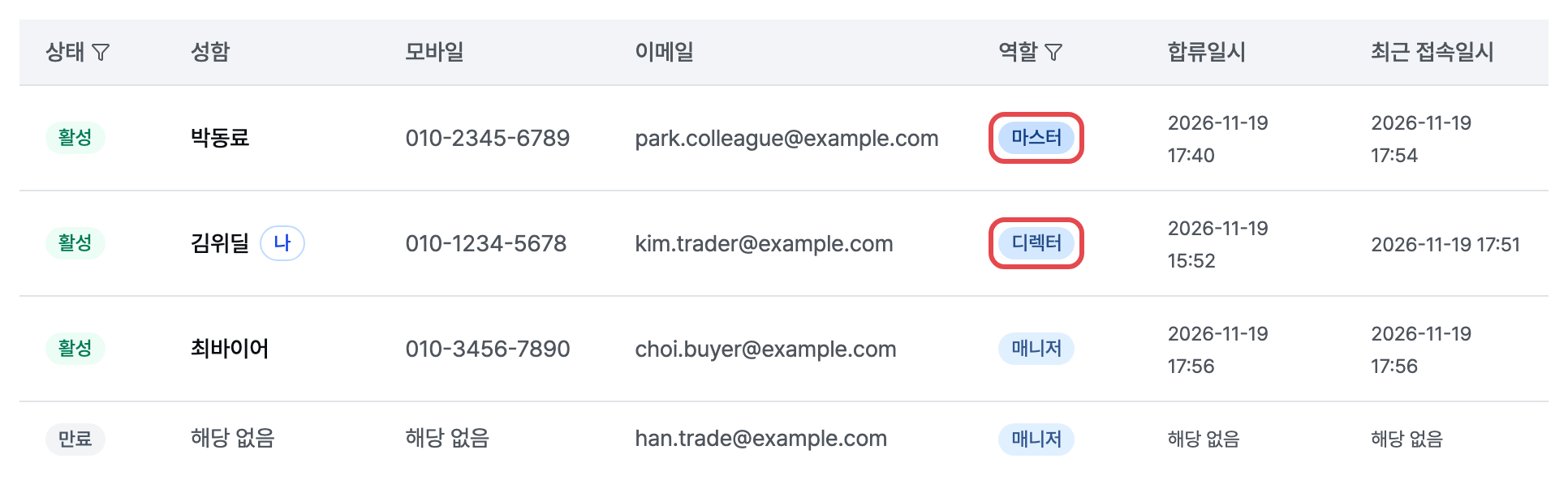
In the list, confirm that the recipient’s role has changed to 「Master」 and your role to 「Director」.
Frequently Asked Questions
Can I reverse the master role transfer?
You cannot reverse it yourself. The current master must transfer it back to you.
I don’t see 「Transfer Master Role」.
Only the master can transfer the master role. 「Transfer Master Role」 does not appear on the director’s or manager’s screen. It also does not appear on your own row.
When should I transfer it?
The master of a workspace with other team members cannot leave as is. WeDealize account deletion is also blocked. Transfer the master role first. If you want to delete your account, you may also remove all team members. See 「[Team Member Management] Leave a Workspace」 and 「[My Account] Delete Account」.
Will the other person know that I transferred it?
An email is sent to both the person who received the master role and the person who transferred it.