[Team Member Management] Leaving a Workspace
Automatically translated from Korean.
What you can do
Directors and Managers can leave a workspace on their own.
Your WeDealize account and other workspaces remain unchanged when you leave.
Steps
Switch to the workspace you want to leave, then click 「Workspaces」 → 「Settings」 in the left menu. On a mobile phone, tap ☰ → 「Workspace Settings」. The 「Basic Information」 tab opens. For how to switch workspaces, see 「[Multiple Workspaces] Switching Between Workspaces」.
At the bottom, in the 「Leave Workspace」 section, click 「Leave」.

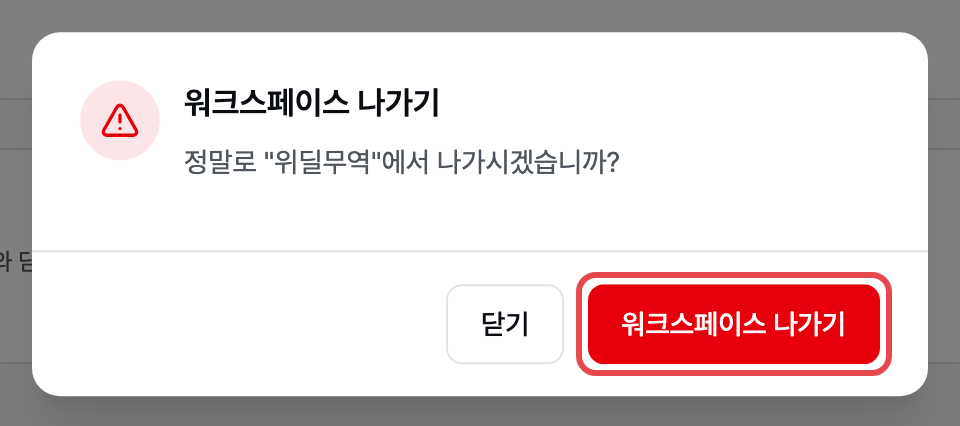
In the confirmation window, click 「Leave Workspace」. To cancel, click 「Close」.
「You left "○○".」 appears. The screen switches to your other workspace.

Frequently Asked Questions
I’m the Master, but there is no 「Leave」 option.
On the Master’s screen, there is a 「Delete Workspace」 section instead of 「Leave」. This is because the workspace is deleted when the Master leaves. If there are other team members, transfer the Master role first. After transferring it, you become a Director and can leave. See 「[Team Member Management] Transferring the Master Role」. If you are the only remaining Master, see 「[Multiple Workspaces] Deleting a Workspace」.
What happens if I leave my last workspace?
A new workspace under your name is created automatically. The confirmation window tells you this before you leave.
Can I join again after leaving?
Yes, you can. Ask a remaining team member to invite you again.
What happens to the transport requests I was handling?
They remain as they are. Requests in progress do not stop even if you leave.