[Company Information] Uploading a Business Registration Certificate and a Copy of a Bankbook
Automatically translated from Korean.
What you can do
You can upload one file for each type of document—the business registration certificate and the copy of the bankbook—to the workspace.
An uploaded business registration certificate is automatically attached to the documents for newly created transport requests. You do not need to upload it again for each request.
Masters and Directors can upload and delete documents.
How to use
Upload
Open the 「Workspace」 → 「Settings」 → 「Company Information」 tab from the left menu, then go to the 「Documents」 section below.
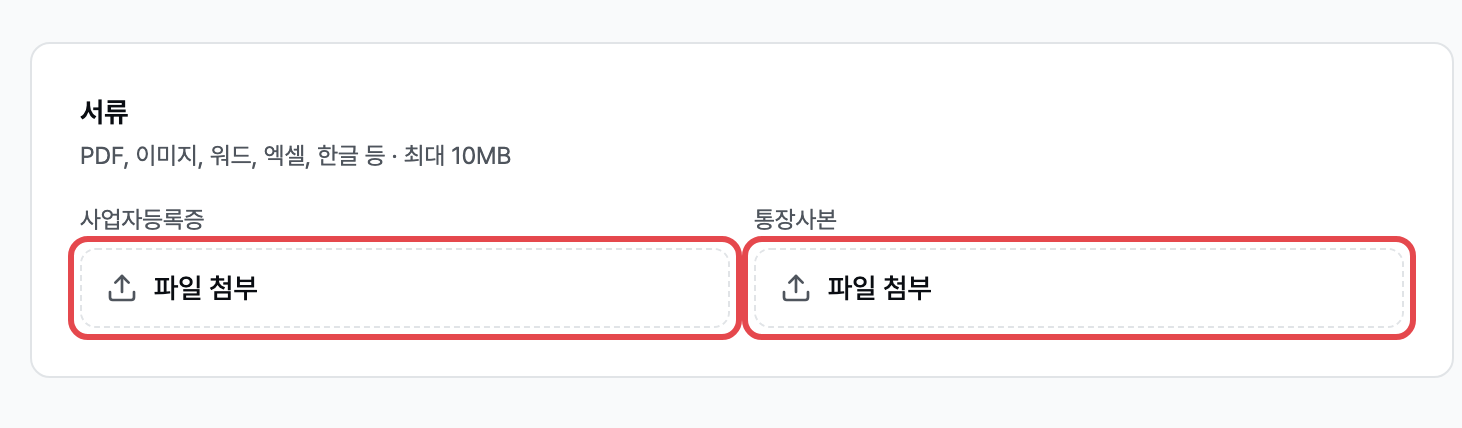
Click 「Attach File」 under Business Registration Certificate or Copy of Bankbook, and select a file. It is uploaded immediately after you select it.
The uploaded file name appears in the field.
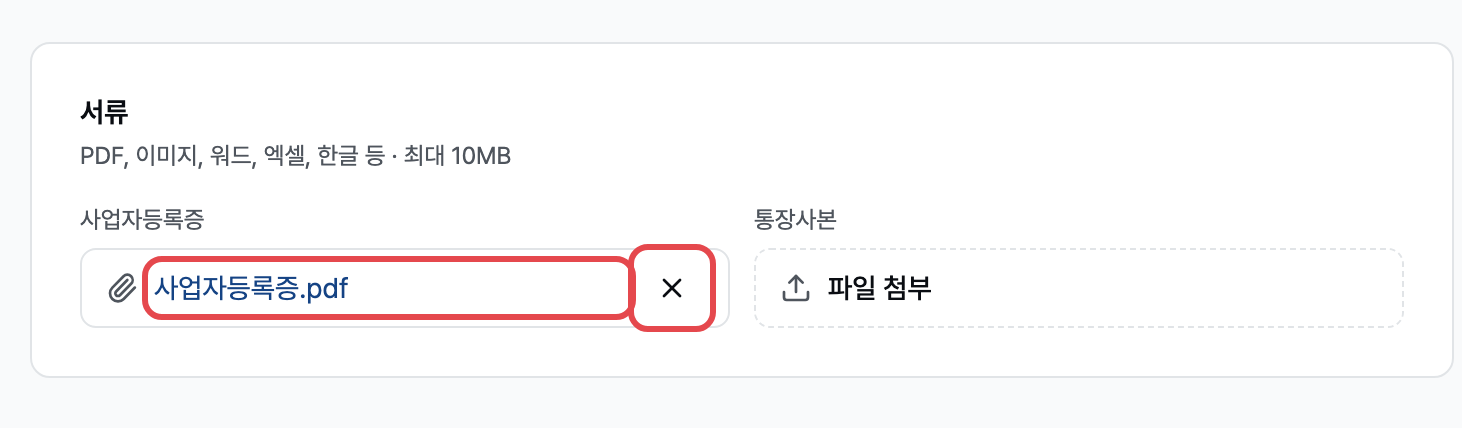
Replace·Delete
Click × to the right of the file name.
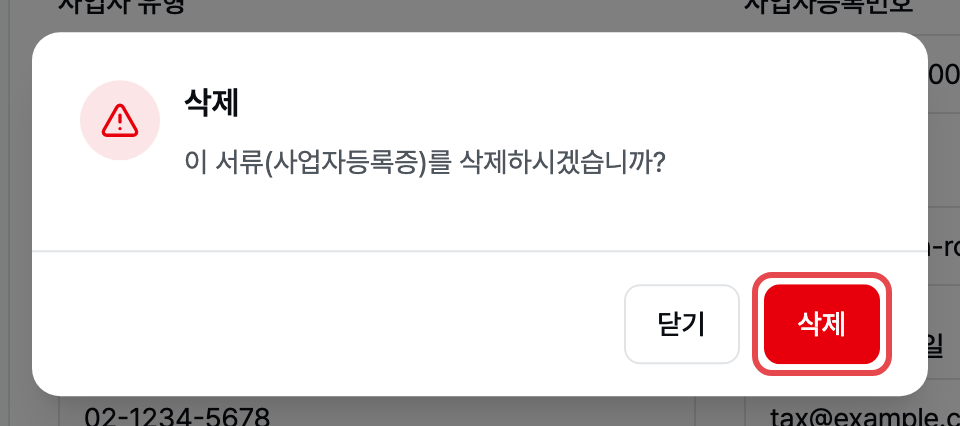
Click 「Delete」 in the confirmation dialog. A notification appears confirming that the file was deleted, and the field is cleared.
To replace it with another file, click 「Attach File」 again and upload the new file.
Frequently Asked Questions
What types of files can I upload?
You can upload PDF, image (JPG·PNG·WEBP·TIF), Word, Excel, CSV, HWP, and TXT files up to 10MB.
What if the new file does not upload while replacing a file?
The previous file is deleted as soon as you click 「Delete」 in the confirmation dialog. If the new file does not upload, the field remains empty. Upload the new file again.
If I replace the business registration certificate, will it also change the document for transport requests that have already been created?
No. The document attached to requests that have already been created remains unchanged. Starting with requests created after the replacement, the new file will be attached.
I uploaded a business registration certificate from the Documents tab of a transport request.
That file is also reflected here in Company Information. You only need to upload it once, regardless of where you upload it.
I cannot see 「Attach File」.
The Manager screen does not have 「Attach File」 or ×. Please ask a Master or Director.