[Multiple Workspaces] Create a New Workspace
Automatically translated from Korean.
What You Can Do
You can create additional workspaces for each business partner or corporation and use them separately.
In a new workspace, team members, purchase orders, shipments, and documents are managed separately from the beginning.
The person who creates it becomes the master of the new workspace.
How to Do It
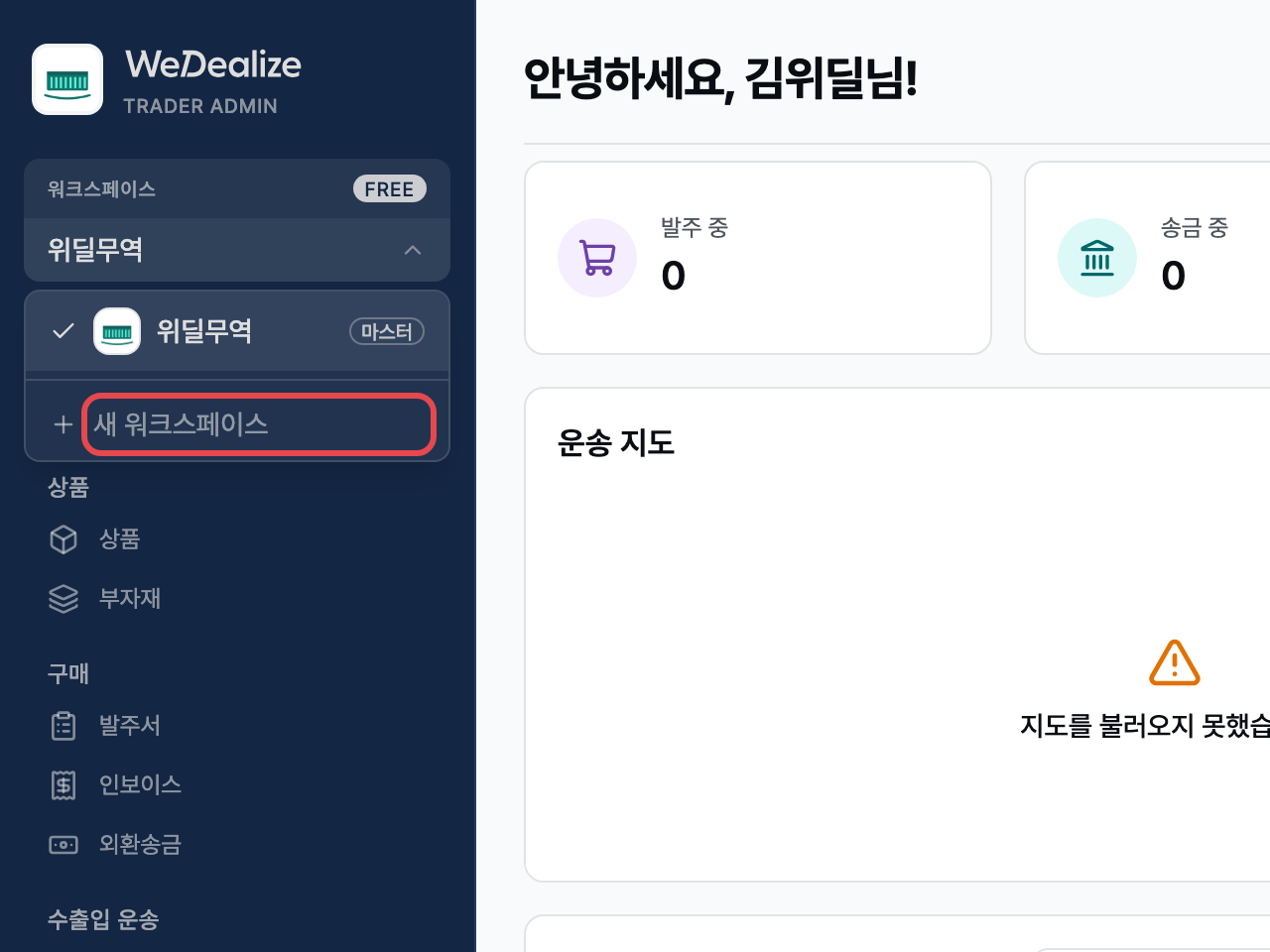
Click the workspace name in the upper-left corner, then click “New Workspace.”
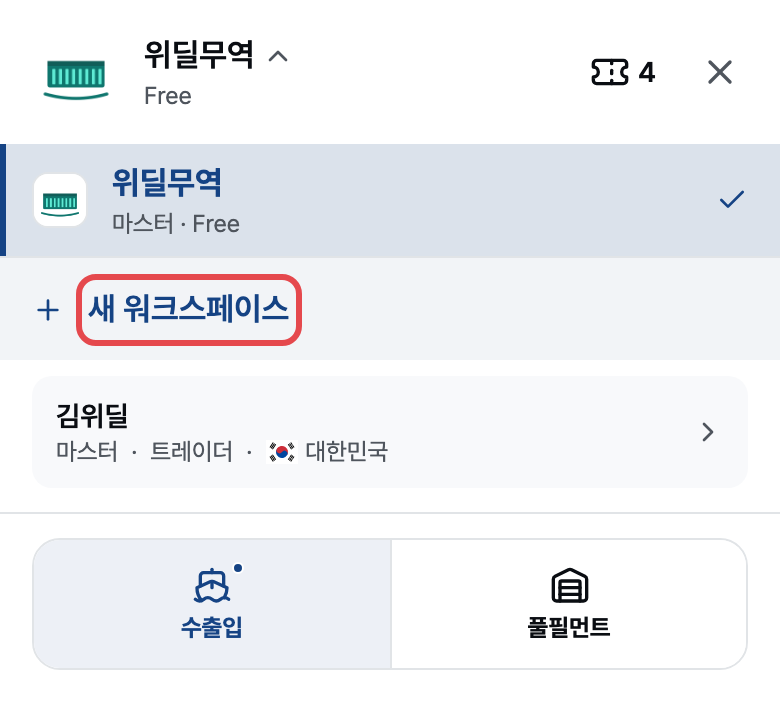
On a mobile phone, tap ☰, then tap the workspace name at the top of the menu to see “New Workspace.”
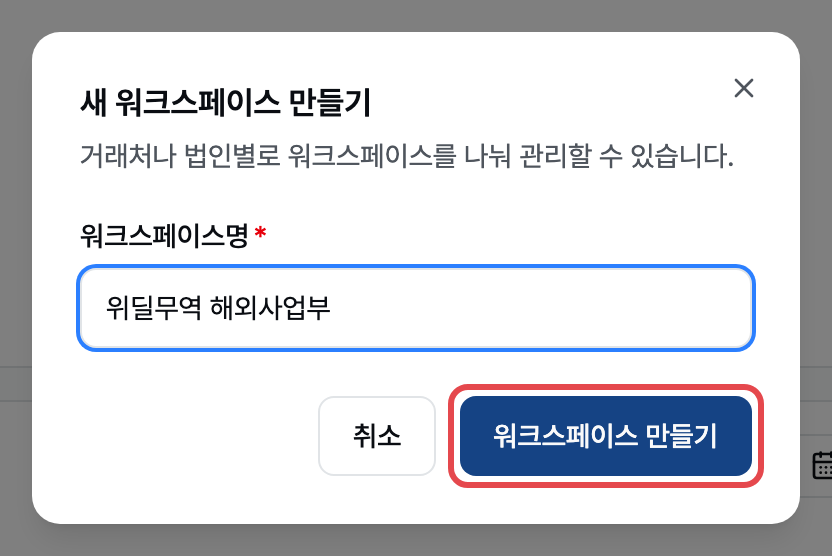
Enter the workspace name and click “Create Workspace.”
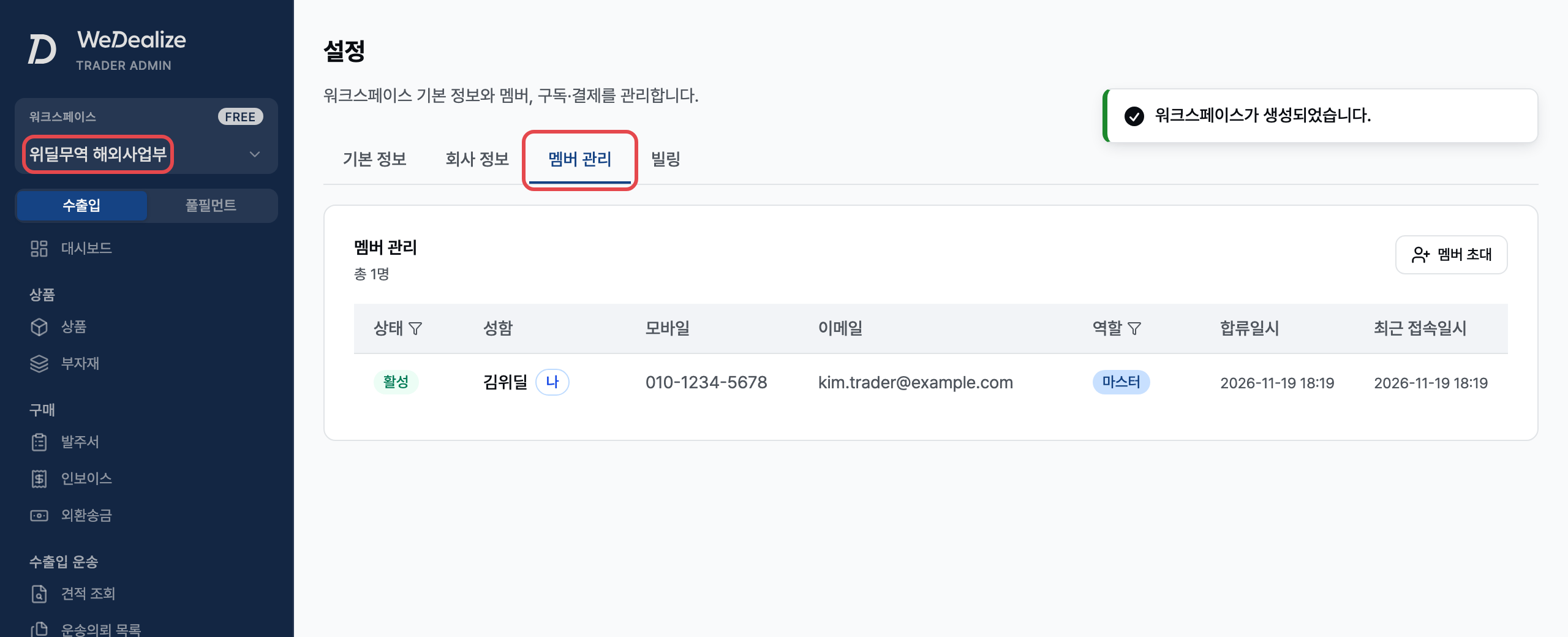
“Workspace created.” appears. The screen switches to the new workspace. The “Manage Members” tab opens, and you can invite team members right away.
Frequently Asked Questions
What about the company information for the new workspace?
The company name (Korean and English) is filled in with the company name from your account. The rest of the company information, business registration certificate, and logo are blank. Refer to “[Company Information] Register Company Information” and fill them in.
Will the team members from the original workspace be included too?
No. Invite them again from the new workspace. See “[Invite Team Members] Invite Team Members.”
How do I return to the original workspace?
Click the workspace name in the upper-left corner and select the original workspace. See “[Multiple Workspaces] Switch Between Workspaces.”