[Multiple Workspaces] Switching Between Workspaces
Automatically translated from Korean.
What you can do
You can switch directly between the workspaces you belong to from the upper left.
Your role is displayed for each workspace.
If you log in again using the same browser, the workspace you last used will open.
Steps
Click the workspace name in the upper left. The workspaces you belong to and your role in each one will appear. The workspace you are currently using is marked with ✓.
Click the workspace you want to switch to.
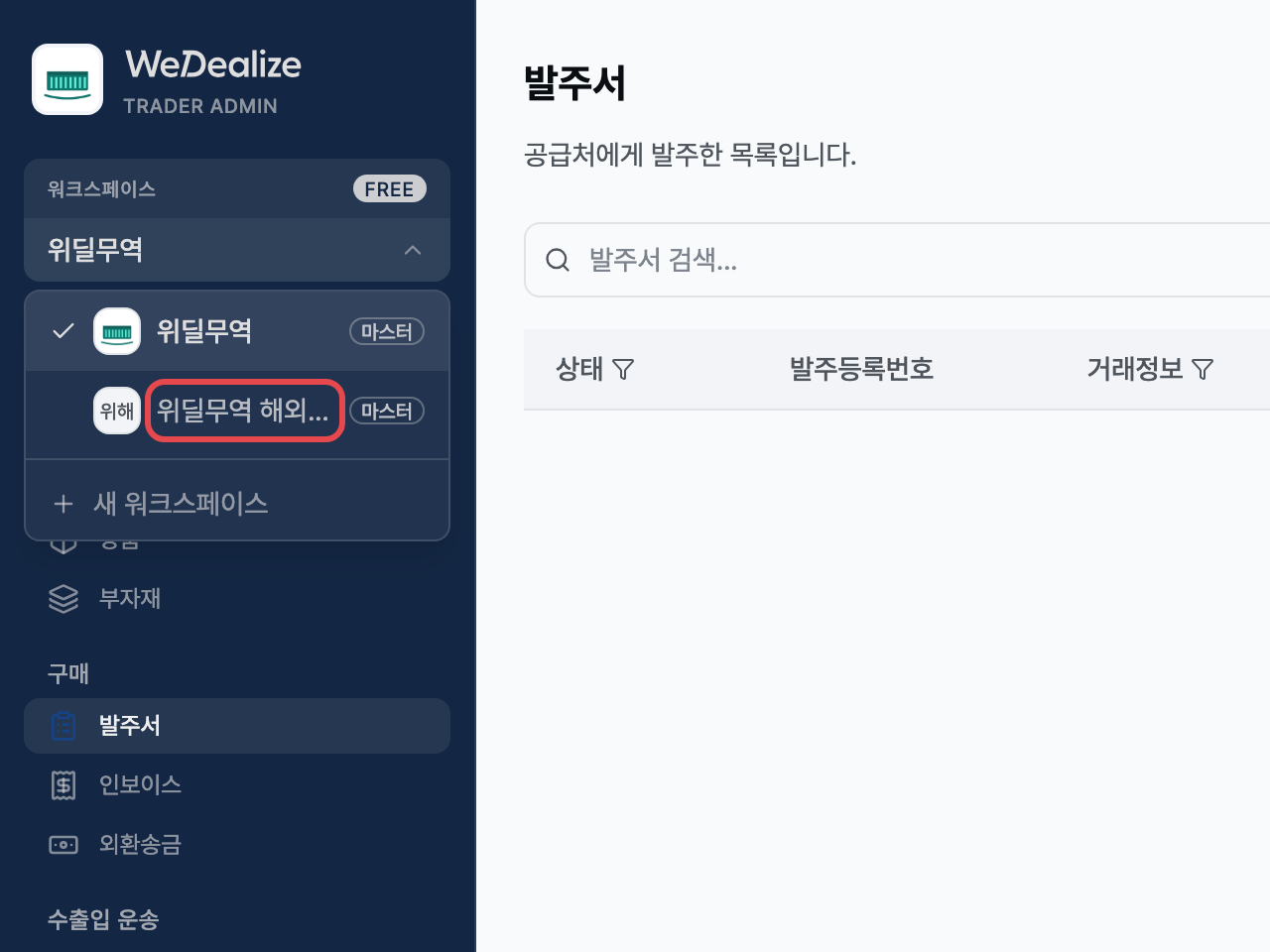
The dashboard for that workspace opens. Confirm that the name in the upper left has changed.

On a phone, tap ☰, then tap the workspace name at the top of the menu to open the same list.
Frequently Asked Questions
Will data be mixed between workspaces?
No. Orders, shipments, documents, and team members shown are only those belonging to the currently selected workspace.
The screen I was viewing disappeared after I switched
When you switch workspaces, you are taken to that workspace's dashboard. Click the menu you were viewing again.
A different workspace opens when I log in on another computer
The workspace you last used will only open automatically in the same browser. A different workspace may open when you use a device or browser for the first time. Check the name in the upper left and switch workspaces.