[Multiple Workspaces] Delete a Workspace
Automatically translated from Korean.
What you can do
The master can delete workspaces that are no longer in use.
A deleted workspace and its data cannot be restored.
Steps
Switch to the workspace you want to delete. For instructions on switching, see the article “[Multiple Workspaces] Switching Between Workspaces.” Select “Workspaces” → “Settings” from the left menu to open the “Basic Information” tab.
At the bottom, under “Delete Workspace,” click “Delete.”

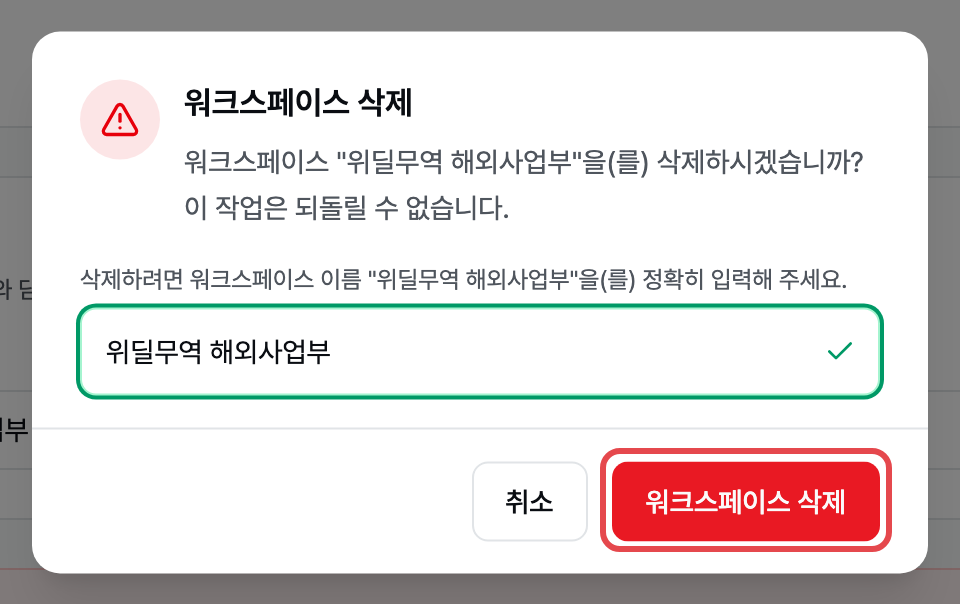
Enter the workspace name exactly as it appears in the confirmation window. If the name matches, a ✓ appears to the right of the field.
Click the red “Delete Workspace” button. To cancel, click “Cancel.”
“○○ workspace has been deleted.” appears. The screen switches to another remaining workspace.

Frequently Asked Questions
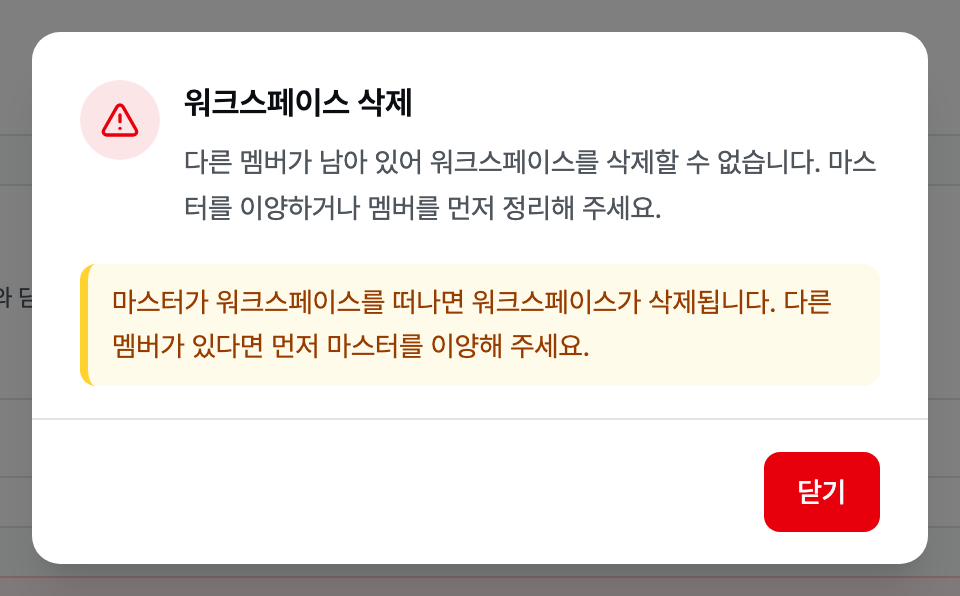
“I’m seeing a message saying, ‘The workspace cannot be deleted because other members remain.’”
You cannot delete the workspace if there are team members other than yourself. To delete it, remove all team members and try again. See the article “[Team Management] Removing Team Members.” If you want to leave while keeping the workspace, transfer the master role before leaving. See the article “[Team Management] Transferring the Master Role.”
Are there any other cases where the workspace cannot be deleted?
You cannot delete the workspace if even one of the following applies.
An in-progress transport request
An incomplete purchase order
An in-progress remittance
An in-progress inbound, outbound, or return
A connected logistics center
A paid subscription
“I’m seeing a message saying, ‘The workspace name does not match.’”
The name entered in the confirmation window differs from the workspace name by at least one character. Enter it exactly, including spaces.
“I don’t see ‘Delete.’”
Only the master can delete a workspace. On the director and manager screens, “Leave Workspace” appears instead of “Delete.”